From LibreTexts, under CC BY-NC-SA 4.0, as the source states it; its equations are written in TeX, which the PDF shows typeset. This page at LibreTexts.
If your institution has approved JASP for use, you can typically download it from a dedicated Software Centre on managed devices such as university desktop computers. If you would like to install JASP on your own computer, you can download it for free from jasp-stats.org by clicking on the ‘Download JASP’ button.
Note:Make sure to read the installation guide for your device’s operating system before installing the software. Especially important for Mac devices which have stricter requirements for running JASP.
Once downloaded you can start the program via the ‘Start’ menu in Windows, the ‘Finder’ icon on a Mac, or the ‘App Launcher’ in Chromebook.
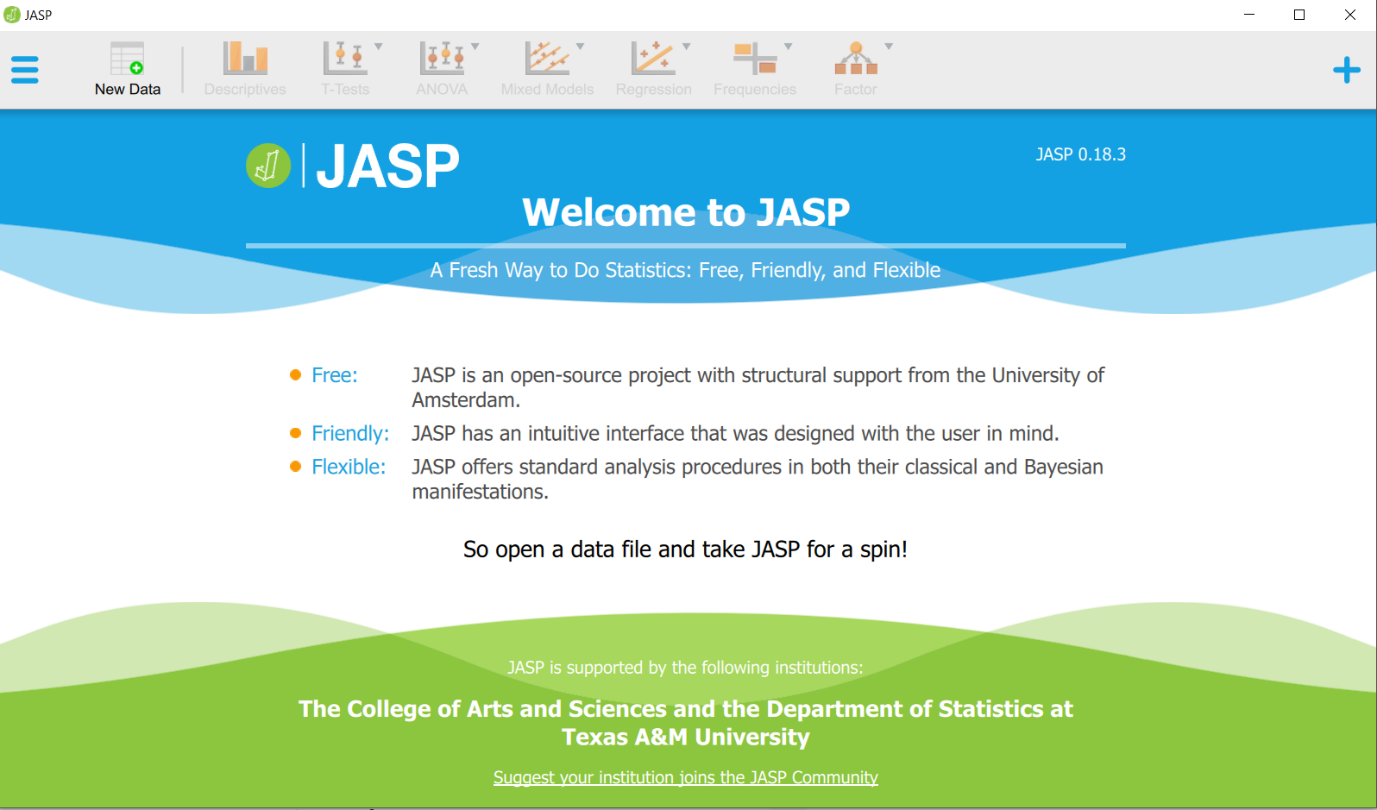
Below is a screenshot of the JASP start-up screen which should be the first thing you see after opening the program.
To open an existing data file you need to click on the collapsed menu icon.
To start a new data file click on the New Data icon.