Opening the book…
Our next step is to add something called an EventList to the current EEGset. An EventList is a simple, easy-to-access list of all the event codes in a dataset. EEGLAB stores event codes in a Matlab data structure that’s a little bit difficult for beginners to access, so we added the EventList structure when we created ERPLAB. As I mentioned earlier, "event" is the first part of the term "event-related potential", so we want to make it easy to see and manipulate the event codes.
If you don’t still have the filtered EEGset from the previous exercise loaded in eStudio, go ahead and load it now (6_N400_preprocessed_filt). If you don't have the file, you can load it from the Extra_Files folder inside the Chapter_2 folder.
To create an EventList for this EEGset, go to the EventList panel in eStudio and click Create. Make sure that the window that appears is set up as shown in Screenshot 2.8, and click CREATE.
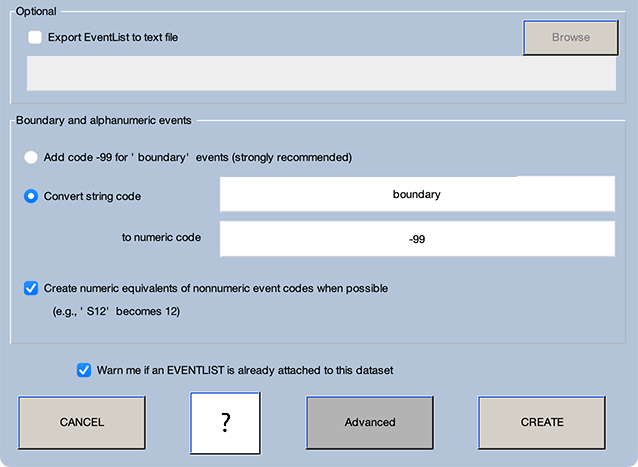
You’ll then see a new window that allows you to name and save the new EEGset. The starting dataset was named 6_N400_preprocessed_filt, and the new one should be named 6_N400_preprocessed_filt_elist. You can save it to disk if you like. Click Okay to continue. You should now see 6_N400_preprocessed_filt_elist in the EEGsets panel.
Now let's take a look at the EventList. Go to the EventList panel and click View. A new window will appear and should look like Screenshot 2.9.

At the top of the window, you’ll see some general information about the EEG recording, such as the number of channels (nchan) and the sampling rate (srate). Below that, you'll see a table listing the event codes, with one per line. Each line contains several columns, which we will discuss later. For now, the key columns are item (which indicates the ordering of the event codes), ecode (which is the actual event code), onset (which is the time of the event code relative to the beginning of the recording), and diff (which is the amount of time between the current event code and the previous event code, in milliseconds rather than seconds). In principle, event codes can have a duration (listed in the dura column), but this feature is not used by ERPLAB, and event codes are typically considered to be instantaneous (i.e., a duration of 0).
The first two items are the button-press responses (code 202) that occurred at the beginning of the session. Items 3-5 are the event codes from the first trial, with a prime word (code 121), a target word (code 221), and a response (code 201). By looking at the difference in time between items 4 and 5 (the diff) column, you can see that the behavioral response on this trial was 563.48 ms after the preceding target word.
You can export the EventList as a text file (with the Export .txt button) or a spreadsheet (with the Export .xls button). You can then edit the file and import it back into the EEGset (with the Import .txt and Import .xls buttons). For example, imagine that the subject was confused about the task between items 120 and 160. You could set the enable column to 0 for these items, which would cause them to be ignored by all ERPLAB processes. Similarly, if you discovered that event code 21 was used instead of event code 121 in one participant's data, you could export the EventList as a .xls file, open the file with Excel and do a global search-and-replace to replace all occurrences of 21 with 121, and then import the .xls file. You can even add or delete event codes in this manner. [If you know how to program in Matlab, you could instead write a script that directly modifies the EventList structure rather than exporting, modifying, and importing the EventList.]
You can now close the window showing the EventList.
Our last step will be to verify that we have the current number of occurrences of each event code. As shown in Table 2.1, there should have been 30 occurrences of each of the stimulus event codes. The number of occurrences of each response event code varies across subjects depending on the number of errors. However, there were 120 trials, so there should be 120 total response event codes (plus the two at the beginning during the instruction phase).
You can see the number of occurrences of each event code in a table at the bottom of the EventList panel. Do we have the correct number of occurrences of each event code type? I recommend checking this for every participant you run. You can catch a lot of errors by making sure that you have exactly the right number of occurrences of each event code (see the box below).
Pro tip: Checking the number of event codes for every participant
In my experience, the most common error within ERP datasets is that there is some kind of problem with the event codes. If you are designing and running your own experiments, perhaps the single most important thing you can do to avoid trouble later is to make sure that your event codes are correct. A given experiment might have 1000+ event codes, so it is difficult to check every single one. However, if you set up your experiment properly, you can at least make sure that you have the right number of occurrences of each event code (for the stimuli).
The first step is to know exactly how many occurrences there should be for each code. And I do mean “exactly” rather than “approximately.” You can have major problems with your event codes and end up with approximately the right number. Once you know exactly how many occurrences you should have, you can simply run your stimulus presentation program while recording the EEG but without a participant. You will then import your data into eStudio, add the EventList, and check the number of occurrences of each event code in the table at the bottom of the EventList panel. You should also “spot check” a few dozen randomly selected event codes to make sure that they are correct with respect to the stimulus that was actually presented.
You should also check the number of occurrences of each event code for every participant you run (immediately after the recording session). Lots of things can go wrong with event codes, and this will allow you to catch a problem before you’ve wasted weeks of time collecting data that turn out to be useless. Checking the number of each event code is easy, and you absolutely must do it to avoid problems.
This page titled 2.5: Exercise- Creating an EventList was last modified on Thu, 01 Oct 2026 18:52:41 GMT and is shared under a CC BY-NC 4.0 license and was authored, remixed, and/or curated by Steven J Luck directly on the LibreTexts platform.
The book could not be loaded just now.