Opening the book…

Colour gamuts and colour spaces
The previous section of this resource explained the Additive RGB colour system, which is the system used for colour in digital media. However, there are multiple colour spaces related to RGB that are used to describe and create the millions of colours that our digital screens can display – and that we can see with human eyes. It’s useful to know about this if you are working with digital tools and software applications to create digital media.
Colour Gamut
Colour gamut (also known as colour space) is the complete range or subset of colour that can be produced or recorded by an application, system or device.
A common representation of the colour gamut used in digital and print systems is shown in Figure 3.20, which displays the gamut of visible colours and the extent of different colour spaces within that.
You can see that the RGB colour space and the CMYK colour space are smaller than the LAB colour space – which is what the human eye can see (for more about CIELAB colour space, visit Contemporary Colour Systems (c. 1930 – 2020+) in this resource).

Learn more about colour gamut and colour space :
RGB colour spaces
There are multiple RGB colour spaces, and they each have different colour gamuts. Some have more greens or more reds and yellows. Some are better for digital-to-print conversion. Here is a summary of some popular ones you will probably find on your digital devices:
sRGB is a standard RGB colour space (or colour gamut) that HP and Microsoft created cooperatively in 1996 to use on computer displays, printers, and the Internet. It was standardised by the International Electrotechnical Commission as IEC 61966-2-1:1999.
It is a preferred standard for web-based media, and many websites and video games have been made using this colour space.
opRGB or Adobe RGB was developed in 1998. It was designed to represent most of the colours achievable on CMYK printers, but by using RGB primary colours on a computer display or digital device.
The Adobe RGB colour space encompasses approximately 50% of the visible colours specified by the CIELAB colour space, which improves on the sRGB colour gamut, mainly in cyan-green hues. It was standardised by the IEC as IEC 61966-2-5:1999 with the name opRGB (optional RGB colour space) and is used in HDMI (High Definition Multimedia Interface) – a standard for simultaneously transmitting digital video and audio from a source, such as a computer or TV cable box, to a computer monitor, TV or projector.
DCI p3 (Digital Cinema Initiatives – Protocol 3) is a more recent standard used by the film industry – mainly for films shown in cinemas. It covers around 45% of the visible colours of the CIELAB colour space and has a wider range of colours than sRGB – around 25% more colours. This increase in visible colour allows for more vibrant colours and can also be used by screens that can display 30-bit colour, such as HDR TV screens. It favours an increase in red-yellow colours as opposed to Adobe RBG, which favours blue-green colours.
In a practical application, these different colour spaces can affect how we see images, movies, video games etc., on different devices and why sometimes graphics can look better or worse on different screens. See the next page for details about how digital screens work.
How digital screens display colour
Pixels on our digital screens emit light in different colours based on how much of each primary colour is emitted from each pixel (RGB values). The number of colours we can see created from a digital RGB system depends on the ‘colour depth’ of our screens (also called monitors or displays).
The first colour computer screens had an ‘8-bit’ depth which only displayed 256 colours (you might remember old 8-bit video games with very basic colour graphics). Now we have true colour on most computers, which is 8-bit for each RGB colour – or ‘24-bit’ depth. This can display over 16.7 million colours.
Some recent high-quality computer displays have ‘30-bit’ depth, which can display 1.07 billion different colour combinations. There is debate about the need for so many colours and whether our eyes can see the difference, although it is claimed that having over one billion colours is useful in certain situations when working with very bright, very dark or very light colours, where a finer level of definition is needed.
Viewsonic: color-management and color blindness – how can monitor technologies help?
Colour calibration
Calibration is the process of aligning your digital screen’s colour output to the RGB standard – so what you are seeing on your screen is a true representation of the RGB colours created by your computer. This process is important for working with digital content like photography and digital-to-print processes where it’s necessary to have colour accuracy. Most computer systems will have their own calibration tools, or you can find online applications to help you calibrate your screen.
Activity – test and calibrate the colours on your digital devices

Figure 3.21. Test Pattern. Image by Zacabeb via Wikimedia Commons, licensed under CC0.
Save a link to this page and open it on all of your digital devices. View the test pattern image in Figure 3.21 and see how it looks on your computer, tablet, mobile device and TV screen. Are the colours different on each device? Is the brightness different? Can you adjust your settings to get the best colour and brightness on each device?
Learn more about digital screen calibration from these links:
- Calibrating – Les Walkling & Co (A great resource for digital media and printing from a significant Australian artist)
- Viewsonic: Color management – a checklist for digital artists
- Viewsonic: Best monitor calibration tool – hardware vs software – calibration
- Viewsonic: What is fogra and why does it matter?
Television settings
Your home television has picture settings that change the colour, brightness and contrast according to perceived usage. The ‘standard’ picture mode might be OK for sports and reality TV but may not be the best for watching movies or drama series as they were intended by directors because it alters the colour settings. You may be able to change your TV settings to ‘cinema’ or ‘movie’ picture mode when watching movies or streaming TV series to get the best colour. See Colour grading in the Colour aesthetics section of this resource for more about the importance of colour in film and video.
What is Hexadecimal colour?
What is Hexadecimal colour?
The Hexadecimal, or HEX colour system, was developed for creating colours in HTML (HyperText Markup Language) for websites. It’s another way of describing RGB colour values – with a single number.
Hexadecimal is a base-16 number system (hex means 6, and decimal means 10), which allows us to represent larger numbers with fewer digits.
It uses the numbers 0 to 9 and the letters A to F to describe RGB value colours:
0 1 2 3 4 5 6 7 8 9 A B C D E F
This is an example of a HEX colour
(the hash symbol ‘#’ denotes a HEX colour in HTML code):
#E86F1F
- E8 is the Red value
- 6F is the Green value
- 1F is the Blue value
Here’s a swatch of the colour:

Note that the highest value is Red (E8 is a high number), the second highest is Green, and the last is Blue – which produces this particular shade of orange.
The same colour in RGB would have the following values:
#E86F1F = RGB(232, 111, 31)
The HEX value is a more efficient way of representing RGB colour information.
This colour picker tool (Figure 3.22) shows RGB and HSV values, and the Hexadecimal colour value (HTML notation).
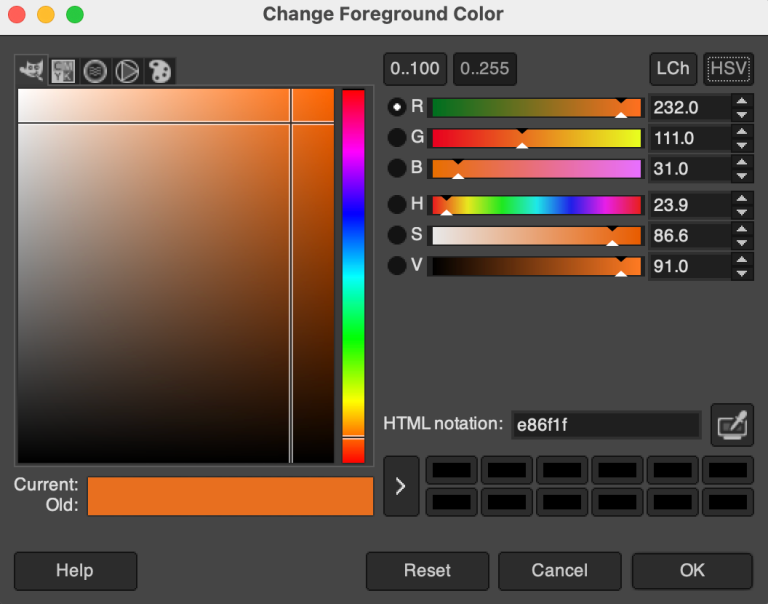
Figure 3.22. Colour Picker showing various RGB colour values. Image attribution: Colour picker image from GIMP image manipulation software application, GNU public licence v.3
White in HEX colour is #FFFFFF – the highest number – and black is #000000 – the lowest number.
If you convert #FFFFFF from a hexadecimal to a decimal number, you get the number 16,777,215 – which is the exact number of colours that can be displayed on 24-bit computer displays.
If you want to test your HEX colour identification skills, you can try this online guessing game – WHAT THE HEX? – It’s fun and can be addictive!
Other RGB colour models
Within RGB colour space, there are different models for describing aspects of colours. These were originally developed for different purposes like television or computer graphics. Representations of these models are still found in many common image editing applications.
HSL represents the values of Hue, Saturation, and Lightness.
HSV represents Hue, Saturation, and Value (also referred to as Brightness)
HWB represents the values of Hue, Whiteness, and Blackness.
- Hue is the colour wavelength on the visible spectrum
- Saturation is the intensity of that colour, and;
- Lightness describes lighter and darker variants of a colour.
- Alpha-channel: in HSL-A colour or RGBa colour, the A represents the Alpha channel, or transparency of the colour, which is used in image editing and web design contexts to allow for transparent layers of colour to be represented.
- Value/Brightness: this value is different to Lightness in HSL – it relates to how bright a colour is, not how light (pale) or dark a colour is.
- Whiteness & Blackness – used in the HWB colour model, these values are different to Lightness and Brightness and represent how much white or black is mixed with the Hue.
It can be confusing to understand what these different values mean until you see them working in a practical way. Here is an interactive colour selector you can use to learn about different colour values. You can enter a colour value and it will display values for six different colour models
Activity: type an RGB, HEX, or other set of colour values into the space provided and see the colour and values for each model.

Figure 3.23. Colour converter tool. Media attribution: Interactive colour converter (JavaScript) by Derk Jan Speelman on CodePen
How do digital images and videos display colour?

Digital image and video objects record and store colour information in different ways depending on their format and encoding methods. When creating visual digital media content, we usually want to have the best quality image possible, but with the smallest file size possible to allow for fast internet download and rendering by software applications.
Topics covered on this page
Resolution
Both image and video files have properties such as Resolution, Width, Height, and File size.
Resolution is how much detail the image holds. This is measured by pixel count in digital images and video. Pixels are tiny squares or dots of colour that form the rectangular grid of an image or video’s visible area. The more pixels in your image, the higher the resolution and the more detail or information stored in the image. This also means better quality and colour.
You might notice on your digital camera or mobile phone how many megapixels the camera can capture. This is the total number of pixels (one megapixel equals 1,048,576 pixels, usually rounded down to 1,000,000 pixels) that can be recorded in a single image. Higher megapixels give a higher-quality image. If your camera can capture an image that’s 12 megapixels, this would be an image that is approximately 4290 x 2800 pixels in width and height.
Image resolution is important to understand if you’re working with screen and print media. We generally use a lower resolution image for screen media and content on the Internet because we want fast loading times, and our screens have a limited resolution display. For printing, a higher resolution is better for image quality. Printers can print at different resolutions depending on their capability. Commercial and professional printers can produce extremely high-resolution imagery necessary for fine art photography and publications. Your home inkjet printer can also print at different resolutions, depending on the quality of the printer.
Resolution in images is measured by the number of pixels in width multiplied by height, but also the density of those pixels – measured by dots per inch (DPI), which is how many dots/pixels are in a square inch. The higher the DPI, the better quality the image will be.
The image in Figure 3.25 on the left is low-resolution. It only has 1% of the information contained in the high-resolution image on the right. Select the image to enlarge.

Figure 3.25. Example of low and high resolution versions of the same image, from a photo by lum-box via Pixabay, licensed under CC0.
Have you ever seen an image on a webpage that looked great on your computer, but when you try to print it, it looks terrible? This is because the screen image has a low resolution – possibly 72 DPI – and low dimensions – possibly 800 pixels width x 600 pixels height or less.
Your printer can produce images that are anywhere from 150 to 1200 DPI (or higher, depending on the printer), so your small image doesn’t have enough pixels to produce a good quality print image.
It’s important to save your image at the right resolution and dimensions for its purpose, and to use the right colour system – RGB for screens, CMYK for print.
Also important!! Once you have reduced an image’s resolution – width/height or DPI – and saved it, that information is lost. If you try to increase the resolution, your editing software compensates by duplicating or replacing pixels and filling in the space according to its encoding system, but it cannot replace that lost information, so you’ll still see a blocky and pixelated image. This affects the colour as well – the lost colour information cannot be replaced.
Many software editing applications have processes that attempt to compensate for the loss of information, and more recently Artificial Intelligence (AI) is increasingly used to ‘intelligently’ enhance image quality by replacing the lost information or repairing images that are damaged or blurry. These tools are useful, although if you work with very high-resolution images, image enhancement is no match for retaining the original image information.
Learn more about AI image enhancement from this article about AI super resolution.
Compression and encoding
More pixels results in a bigger file size – which is the number of bytes (kilobytes, megabytes, gigabytes, terabytes, etc.) in the file. This can be problematic with video – even a short video can have thousands of frames and in theory, each frame is an image. Video files are much bigger in file size than still images.
Image and video files also store colour information in different ways.
Image file formats
RAW is a raster image format (based on a fixed grid of pixels) used for unprocessed images usually captured with a camera. There are many different RAW image formats, and these are often dependent on which camera you use. RAW images are ultimately converted to another format to be used for digital media (JPEG, PNG) or print (TIFF, high-quality JPEG). Your camera or mobile device may have the settings option to save images as RAW or JPEG.
Note: RAW images will take up more file space on your device.
Think of a RAW image like a traditional physical photographic negative that can be reproduced in multiple formats (although a RAW image is not a negative image). Keeping a RAW version of an image means that you have all the original information of the image, which can then be altered using non-destructive editing techniques to achieve a particular result. For example, you might change the exposure, brightness, contrast, and colour values of an image in your editing software and save that as a TIFF image file for printing, but you still have the original RAW file to return to if you want to create a different version of the image with different colour values.
Learn more about RAW
Learn more about non-destructive editing.
GIF (Graphics Interchange Format) was one of the first raster image formats used on the Internet. It has a very limited palette of colours available – only 256 colours. This is partly because it was created when bandwidth was much lower and slower than it is today. Only the smallest of image file sizes could be used to share images across networks or display graphics on web pages. Also, screens only displayed 256 colours at that time, so there was no requirement for more colour information. The innovative compression used in GIF identifies repeating patterns, then simplifies them, allowing for lossless compression of files – meaning none of the data is trimmed in the shortening process (Lempel-Ziv-Welch compression algorithm).
GIF images can save different minimal colour ‘palettes’ – you can choose to save only the colours used in the image (indexed colour), which makes the file sizes very small. Because of the limitations of GIF image colour, it is a good format for simple graphics like logos but not good for photographic images. You can also save transparency in a GIF image – which is useful for something like logo design, where you might want a transparent background so that the same image can sit on different coloured backgrounds – for example, in webpages.
GIF was the first common image format that allowed animation (WebP images also allow animation, but are not commonly used at this time). Animated GIFs are multi-frame images that hold information like frame rate and looping properties. They have had a resurgence in popularity on social media and in meme culture because they are usually very short in timeframe and small in file size, therefore easy to access on mobile devices.
Learn more about GIF:
Smithsonian magazine: A Brief History of the GIF, From Early Internet Innovation to Ubiquitous Relic.
The JPEG (Joint Photographic Experts Group) raster image format became a standard image format in the late 1980s and early 1990s. It allows for millions of colours in an image (24-bit colour), which is good for capturing photographic images. JPEG uses a system of lossy compression to reduce the amount of information in an image file and therefore reduce the image file size – making it a useful image format for the Internet.
It’s called ‘lossy compression’ because visual data that the human eye can’t see is removed, and colour variation is averaged, so some of the image information is lost in the compression process. You might have seen low quality JPEG images on websites or social media where the image looks blocky or has visible ‘artefacts’ (noise or aliasing on the edges) – this is due to the JPEG format compression.
The user can control the level of compression in a JPEG image – more compression results in a lower quality and smaller file size. Less compression results in a higher quality and bigger file size. Your image editing software will give you compression options when you save your image as a JPEG/JPG file.
Learn more about JPG:
SVG (Scalable Vector Graphic) is a very different kind of image format. It is not a resolution-dependent raster image format, rather, it is based on vector graphics, which are mathematical statements that describe lines, curves, shapes and colours on the Cartesian plane (x,y axis). This makes it scalable, so no matter how big or small you size the image, it will retain its quality – it redraws the geometric information at any size. Because an SVG file stores mathematical information and not pixel information, SVG files are generally very small and can also be used in websites as XML code.
This kind of graphic is generally not used for photographic images – calculating the vector maths for a complex photographic image would be less efficient than using pixels and compression formats. However, vector graphics are very useful for visual materials that need to be reproduced at different sizes in both digital and print media, such as advertising graphics output like posters, banners, billboards, signage, etc. Other common vector image file formats that digital media creators may encounter include EPS, AI, and PS.
There are many, many more image file formats that are useful to know about when creating digital media, such as:
- PNG – (Portable Network Graphic): raster image format good for photographic images, supports lossless compression and has millions of colours, transparency (PNG-24), and is commonly used in webpage design.
- TIFF – (Tag Image File Format): raster image format popular with photographers for storing lossless, high-quality images for printing.
- BMP – (Bitmap): a high-quality, uncompressed raster image format. Originally created by Microsoft.
- HEIC – (High Efficiency Image Format): a more recent raster file format that has better quality than JPEG, using HEVC (High Efficiency Video Coding) for compression. It is now commonly used in Apple devices. A HEIC image may be half the size of a JPEG but with higher quality.
Adobe: HEIC vs JPEG. - WebP is a more recent raster image format developed for the web. It has better quality lossless and lossy compression compared to either PNG or JPEG. It uses predictive coding to compress the visual data, resulting in comparatively small file sizes, and is currently supported in recent browsers. You can also have animated WebP images.
Google developers: WebP.
There are also native image file formats that are the image files created by particular software applications. For example, Adobe Photoshop has a native file format that has the extension PSD. This file can only be used by Photoshop – you have to export a JPEG, PNG, GIF or another type of file from the Photoshop PSD file if you want to use your image on the Internet for example.
Learn more about image file formats from this video (14 minutes):
Media attribution: Explaining Image file Formats, Explaining Computers on YouTube
Digital video properties
Video files without compression are so big in file size that they would be very slow to download – even with very fast Internet – and difficult to play without lagging and buffering.
If we didn’t have compression, you wouldn’t be able to stream videos from platforms like Netflix or Google Play.
A video file has certain properties:
Container – type of file – MP4, AVI, MOV, etc.
Dimensions/resolution – width and height in pixels (Figure 3.26).
Some common video resolutions:
- SD (standard definition) any video with a height of 480 pixels or less
- HD (high definition) – 1280 x 720 pixels
- full HD – 1920 x 1080 pixels
- 4K UHD (Ultra HD) – 3840 x 2160 pixels
- 8K (full ultra HD) – 7680 x 4320 pixels
This image shows the difference in video resolutions – select the image to enlarge

Figure 3.26. Video resolution comparison by RMIT, CC BY-NC 4.0. from a photo by Babelphotography via Pixabay, licensed under CC0.
Learn more about video resolution here… Typito: video resolutions
Frame rate – how many frames per second (fps): 24 fps has been a standard frame rate for many years, 30 fps is used for TV broadcasts, 60 fps is becoming more common in 4K HD video, and for capturing slow motion footage, we see frame rates of 120 fps and higher, captured by high-speed cameras that can handle such high frame rates.
Duration: the length of a video in hours, minutes, and seconds (HH:MM:SS). For example, 01:30:24 describes a video duration that is one hour, 30 minutes and 24 seconds long.
Bit rate (bitrate) is the amount of data stored per each second in a media file (video and audio). It’s measured in megabytes per second (MBPS).
- A high bitrate is associated with a high resolution and/or low compression, which means bigger file sizes.
- A low bitrate is associated with a low resolution and/or high compression, which means smaller file sizes.
As with still images, you can’t turn a low-quality video into a high-quality video because there isn’t enough data about the pixel colours in each frame to increase the resolution or replace the data lost in compression. AI tools may be able to fill in and define low-resolution video to improve quality. For example, grainy, low-light video footage can be smoothed and better defined, but this functionality is limited and is not equal to capturing high-resolution video in the first place.
Video Codecs
Codec (a portmanteau word for coder-decoder) is the software encoding method that compresses video data and stores it in the container (file) so it can be decompressed and played back.
Video compression, as with image files, reduces the amount of colour information stored in the video file without visually altering what the viewer can see. Most video codecs are lossy – some of the data of an uncompressed video file is lost in the compression process, necessary to make file sizes small enough to play back smoothly and download quickly or stream at the right speed.
There are many different kinds of video and audio codecs, and they all use different compression methods to reduce file size. Codecs in video work by reducing the data by motion compensation, macroblocks (large blocks of pixels that have the same colour or motion) and chroma subsampling.
Motion compensation uses keyframes – I-frames, P-frames and B-frames. I-frames contain the complete image, whereas P-frames look for which pixels have changed and only record the information for those changed pixels. I-, P- and B- frames make up what we call “groups of frames”, and this method can reduce the size of the video file by up to 90%.
Chroma subsampling reduces the amount of colour information by using a different colour space instead of RGB. It’s a complex system to understand: the YCbCr colour space works for video because the human eye is more sensitive to changes in brightness than changes in colour. YCbCr represents the following colour information in video:
- Y (luminance or luma)
- Cb (blue-difference chroma)
- Cr (red-difference chroma)
luma = brightness, chroma = colour
Some common video formats and their codecs:
MP4 (MPEG 4) – the MP4 container is the current industry standard for HD video. It most commonly uses the H.264 codec (also known as Advanced Video Codec or MPEG Part 10), which supports up to 8K video. It produces high-quality video at a low bitrate which means smaller file sizes – useful for streaming video content online.
Wikipedia: Advanced Video Coding.
MOV (Quicktime video format) is an Apple standard video format that usually uses MPEG-4 compression. In fact, the MPEG-4 format evolved from the Quicktime file format (QTFF) around 2001. MP4 is a revised version of this.
AVI (Audio Video Interleave) is a Windows standard video format created by Microsoft in 1992, which commonly uses the DivX codec.
Learn more about video formats, containers and codecs from this video (14 minutes):
Media attribution: Explaining Digital Video: Formats, Codecs & Containers, Explaining Computers on YouTube
Learn more about video here:
- Basics of video encoding
- Wikipedia: comparison_of_video_container_formats
- Wikipedia: comparison_of_video_codecs
Test yourself: colour systems – digital
A multiple choice quiz to test your understanding of digital colour systems
(5 minutes or less)
How did you go?
If you need to learn more about this topic, you can read this section again.
This page titled 3.3: Colour Systems- Digital was last modified on Fri, 23 Oct 2026 01:00:23 GMT and is shared under a CC BY-NC 4.0 license and was authored, remixed, and/or curated by Lisa Cianci.
The book could not be loaded just now.