Opening the book…
Step 1: Go to https://visualstudio.microsoft.com/downloads
You will see following screen:

Select "Community" version, and click on "Free download".
Step 2: Go to the Download Folder in your computer and run the following installer:

Double click on "VisualStudioSetup" in the Download Folder, in the following box, click on "Continue":

In following pop up window, check "Desktop development with C++", and leave the rest of boxes unchecked. Then click on "Install"

The installation process begins:

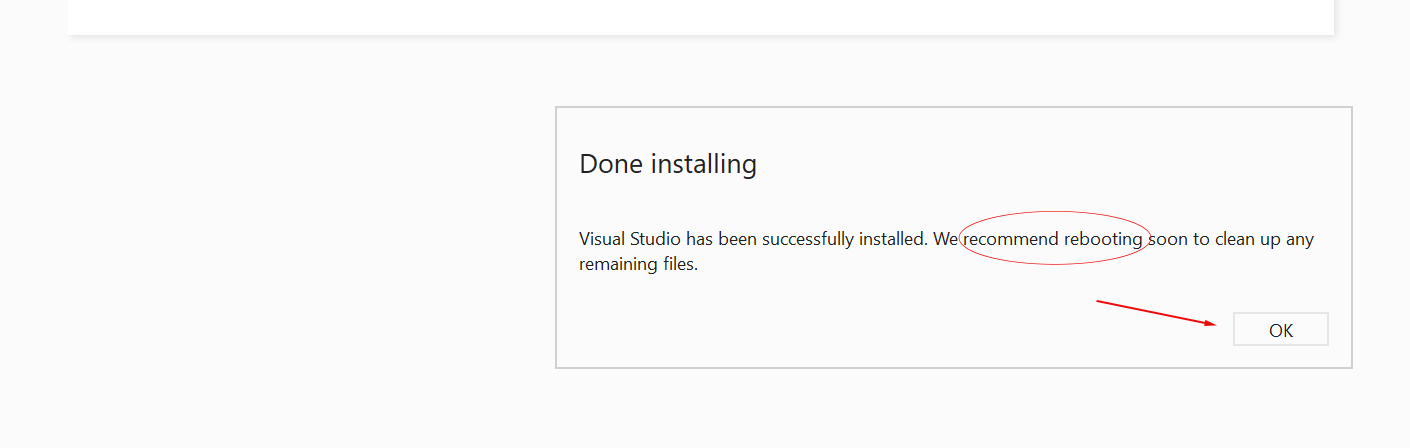
In the following window, click on OK and then restart your computer:
Congratulations! You have successfully installed Microsoft Visual Studio on your computer and ready to use it for coding a C++ program.
Get Started with Microsoft Visual Studio
Now, let's use the IDE we just installed to write, build, and run a simple C++ program.
If you prefer watching video presentations for this topic, please study following video lecture:
Video Presentation 1.1 Getting Started with Microsoft Visual Studio
This video lecture is based on Community 2019, which is very similar to Community 2022
If you prefer the text and graphical presentation, please proceed.
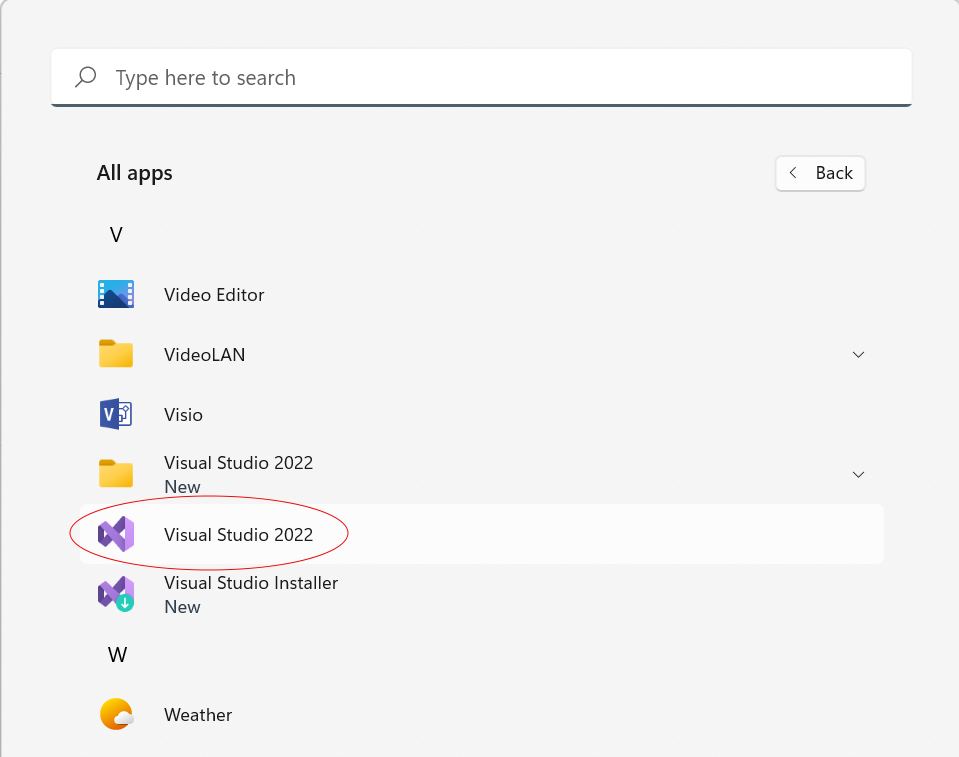
Step 1: Go to Start on your computer and launching the app (Now, it is Visual Studio 2026)
After the app is launched, we will see following screen (now it is Visual Studio 2026):

Step 2: Click on "Create a new project, then following screen appears:

Step 3: Select "Empty Project" and then click on "Next". Now, following screen shows up:

Step 4: Name your project (here I name my project as "myProject"). Please pay attention to the default location where the project is saved. You may change it to the location where you prefer such as "Desktop". Then click on "Create". We will see following screen:

Step 5: Right click on "Source Files", then select "Add" and then select "New Items..." as shown below:

Now, a blank file is opened, and this is where we will write our C++ programs:

Step 6: Key in the code of a simple C++ program as shown below:

This program will display a message "Good Morning!" on the output screen of the program. A C++ program need to be built before it can be executed. When we say "Build a program" it means error-checking and linking all the computer resources which are required for the program to run.
Step 7: Click on "Build" and then select "Build Solution" as shown below:

If there is no errors found, we should see following screen with those highlighted words:

Now we are ready to execute the program.
Step 8: Click on "Debug" and then select "Start Without Debugging" as shown bellow:

Now, the program is being executed and an output window shows up. The message "Good Morning!" appears in the window:

Congratulations! You just successfully wrote, built, and ran a C++ program with the IDE.
This page titled 1.4: Download and Install App for C++ Programming (PC Users) was last modified on Wed, 24 Dec 2025 20:37:22 GMT and is shared under a CC BY-NC-SA 4.0 license and was authored, remixed, and/or curated by Jin He.
The book could not be loaded just now.