Opening the book…
A web browser is a type of software that allows you to find and view websites on the Internet. There are many different web browsers, but some of the most common ones include Google Chrome, Internet Explorer, Safari, Microsoft Edge, and Mozilla Firefox.
Web Browser Interface
Every web browser contains a different interface, however, there are some common attributes of all of them.
URLs and the address bar
Each website has a unique address, called a URL (short for Uniform Resource Locator). URL’s are street addresses for computers, letting your computer know where to connect to on the internet. URLs are entered on the browser’s address bar. The address bar is usually located at the top of the website window. Sometimes, address bars also have built-in search features, to search for the address if you do not know the exact website address. Website addresses usually contain HTTP:// or https:// which stands for Hypertext Transfer Protocol or Hypertext Transfer Protocol Secure. https:// addresses are more secure. The next letters are usually www which stands for World Wide Web. After www, the website address is displayed. Usually, website addresses end in .com (commercial), .org (organization), or .edu (educational institution) depending on their classification. In the address bar, please type or www.clcmn.edu to take you to the CLC website.
Hyperlinks
The website www.clcmn.edu displayed above that is underlined in blue is an example of a hyperlink, which provides the user with a direct address to a location on the web. Usually, the mouse pointer icon will switch to a  indicating the text is a hyperlink.
Navigation buttons

The Back and Forward arrow buttons allow you to move backward and forward through websites you've recently viewed. You can also click and hold either button to see your recent history. The Refresh button  will load the current website you are viewing a second time. Often a user will click on the refresh button when a website stops working to correct the error or to view new information because the website was updated while the user was viewing the information.
Browser Tabs
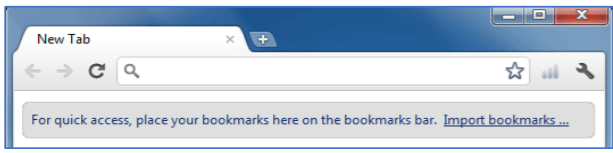
Many browsers allow you to open links in a new tab. Each tab is a new instance of the browser to help you manage your applications more efficiently. The more browser tabs that you open, the more system resources you consume. To open a link in a new tab, right-click the link and select Open link in a new tab (the exact wording may vary from browser to browser). You can close a tab by clicking the “X” on the particular tab, and open a new tab by clicking the “+” button on the particular tab.
Downloading Files
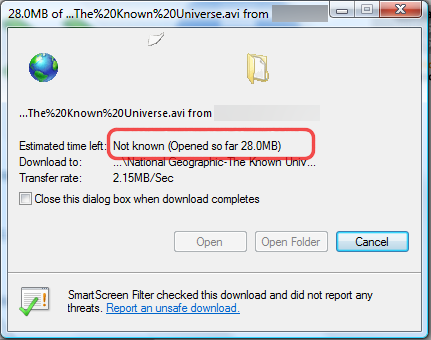
Links don't always go to another website. In some cases, they point to a file that can be downloaded, or saved, to your computer. If you click a link to a file, it may download automatically, but sometimes it just opens within your browser instead of downloading. To prevent it from opening in the browser, you can right-click the link and select Save link as (different browsers may use slightly different wording, like Save target as). Files downloaded from the internet are often downloaded to your download folder, which is a quick access folder accessible on the left navigation pane of windows explorer. Sometimes you may want to save an image from a website to your computer. To do this, right-click the image and select Save image as (or Save picture as). Make sure you trust the file that you downloaded to your computer, as downloading any file or program to your computer contains security risks to your computer (links).
Internet Security
Links don't always go to another website. In some cases, they point to a file that can be downloaded, or saved, to your computer. If you click a link to a file, it may download automatically, but sometimes it just opens within your browser instead of downloading. To prevent it from opening in the browser, you can right-click the link and select Save link as (different browsers may use slightly different wording, like Save target as). Files downloaded from the internet are often downloaded to your download folder, which is a quick access folder accessible on the left navigation pane of windows explorer. Sometimes you may want to save an image from a website to your computer. To do this, right-click the image and select Save image as (or Save picture as). Make sure you trust the file that you downloaded to your computer, as downloading any file or program to your computer contains security risks to your computer (links).
Bookmarks and Internet History
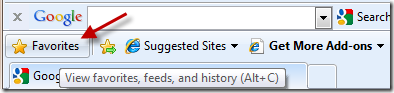
If you find a website you want to access later, it can be difficult to remember all of the websites you want to visit. Bookmarks or favorites allow your computer to remember your favorite website URLs so you do not have to. To create a bookmark, select the Star icon to bookmark the current website. In addition to bookmarks, your browser will also keep track of every website you visit through your internet history. To view your history, open your browser settings—usually by clicking the icon in the upper-right corner—and select History.
This page titled 1.1.3: Web Browsers and the Internet was last modified on Fri, 17 Jul 2026 18:30:38 GMT and is shared under a CC BY-NC-SA license and was authored, remixed, and/or curated by LueCrecy Ragan - Arkansas State University - Beebe (Minnesota State Opendora) .
The book could not be loaded just now.