Opening the book…
The Excel Ribbon
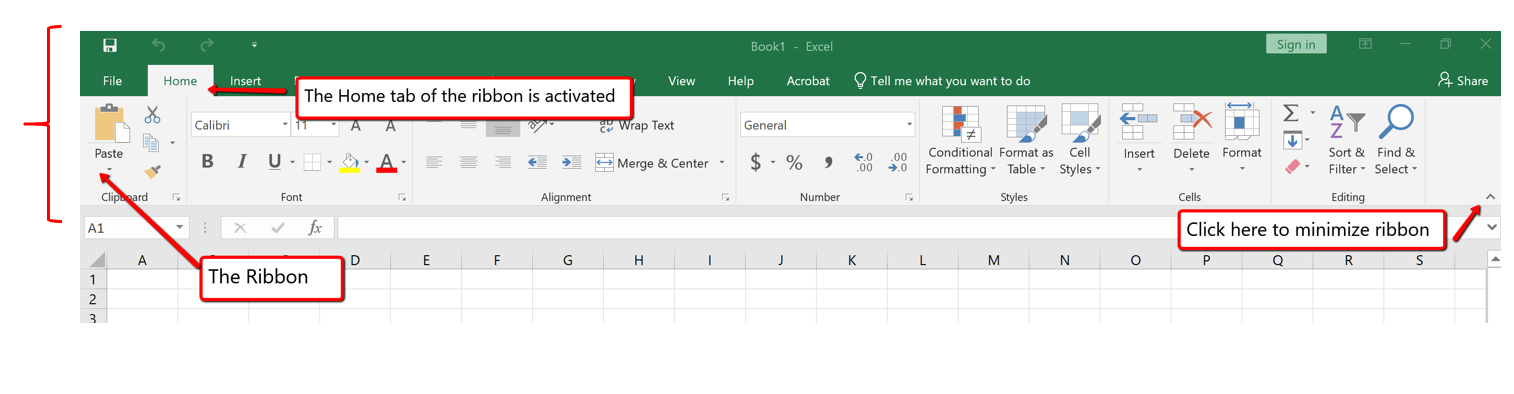
Excel’s features and commands are found in the Ribbon, which is the upper area of the Excel screen that contains several tabs running across the top. Each tab provides access to a different set of Excel commands. Figure 1.6 shows the commands available in the Home tab of the Ribbon. Table 1.1 “Command Overview for Each Tab of the Ribbon” provides an overview of the commands that are found in each tab of the Ribbon.
 The Excel for Mac ribbon, as shown in Figure 1.6a below, has two primary differences:
- The older dropdown menu structure is still available with Excel for Mac.
- The specific commands and tools within each tab are slightly different between the two Excel Ribbons. Some of the commands found within the Excel for Windows Ribbon tabs are located within the dropdown menu structure in the Excel for Mac version. So, if you can’t find the tool on the Excel for Mac Ribbon, then try to find the tool by looking through the dropdown menu instead.

Group Title Names on the Ribbon
If you look closely at the Excel Ribbon (See Figure 1.6 above), you will see that the Ribbon is separated in groups of tool buttons, and each group has a title name. On Home tab, the group title names are “Clipboard”, “Font”, “Alignment”, “Number”, “Styles”. “Cells”, “Editing”, etc. The tool buttons within each group are all related to the group title.
Mac Users Only: The default “View” for the Excel for Mac ribbon does not display these “group title names”. Notice in Figure 1.6a above, there are no group title names. It is a good idea to change this “view” so you can see the group title names. Here are the steps:
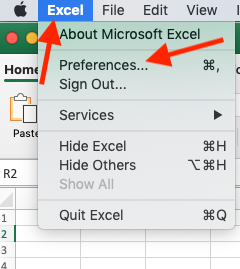
- Click the “Excel” menu option at top left above the Ribbon
- Choose “Preferences”
- Click the “View” button
- Scroll down and check the box for “Group Titles”
- Close the “View” dialog box. The group title names should now display as shown in Figure 6.1 (not Figure 6.1a) above
| Tab Name | Description of Commands |
|---|---|
| File | Also known as the Backstage view of the Excel workbook. Contains all commands for opening, closing, saving, and creating new Excel workbooks. Includes print commands, document properties, e-mailing options, and help features. The default settings and options are also found in this tab. |
| Home | Contains the most frequently used Excel commands. Formatting commands are found in this tab along with commands for cutting, copying, pasting, and for inserting and deleting rows and columns. |
| Insert | Used to insert objects such as charts, pictures, shapes, PivotTables, Internet links, symbols, or text boxes. |
| Page Layout | Contains commands used to prepare a worksheet for printing. Also includes commands used to show and print the gridlines on a worksheet. |
| Formulas | Includes commands for adding mathematical functions to a worksheet. Also contains tools for auditing mathematical formulas. |
| Data | Used when working with external data sources such as Microsoft Access, text files, or the Internet. Also contains sorting commands and access to scenario tools. |
| Review | Includes Spelling and Track Changes features. Also contains protection features to password protect worksheets or workbooks. |
| View | Used to adjust the visual appearance of a workbook. Common commands include the Zoom and Page Layout view. |
| Help | This tab provides access to help and support features such as contacting Microsoft support, sending feedback, suggesting a new feature, and community discussion groups. This tab is not available with Excel for Mac. |
| Draw | Provides drawing options for using a digital pen, mouse or finger depending on the type of device (laptop with touch screen, tablet, computer, etc). This tab is not visible by default. See below on how to customize the Ribbon to add or remove tabs. |
| Developer | Provides access to some advanced features such as macros, form controls, and XML commands. This tab is not visible by default. See below on how to customize the Ribbon to add or remove tabs. |
The Ribbon shown in Figure 1.6 and Figure 1.6a (above) is full, or maximized. The benefit of having a full Ribbon is that the commands are always visible while you are developing a worksheet. However, depending on the screen dimensions of your computer, you may find that the Ribbon takes up too much vertical space on your worksheet. If this is the case, you can minimize the Ribbon by clicking the button shown in Figure 1.6. When minimized, the Ribbon will show only the tabs and not the command buttons. When you click on a tab, the command buttons will appear until you select a command or click anywhere on your worksheet.
To hide the Ribbon with Excel for Mac you can use the keyboard shortcut:
Hold down the “Command and Option” keys and tap the “R” key
The same keyboard shortcut will unhide the Ribbon as well.
Quick Access Toolbar and Right-Click Menu
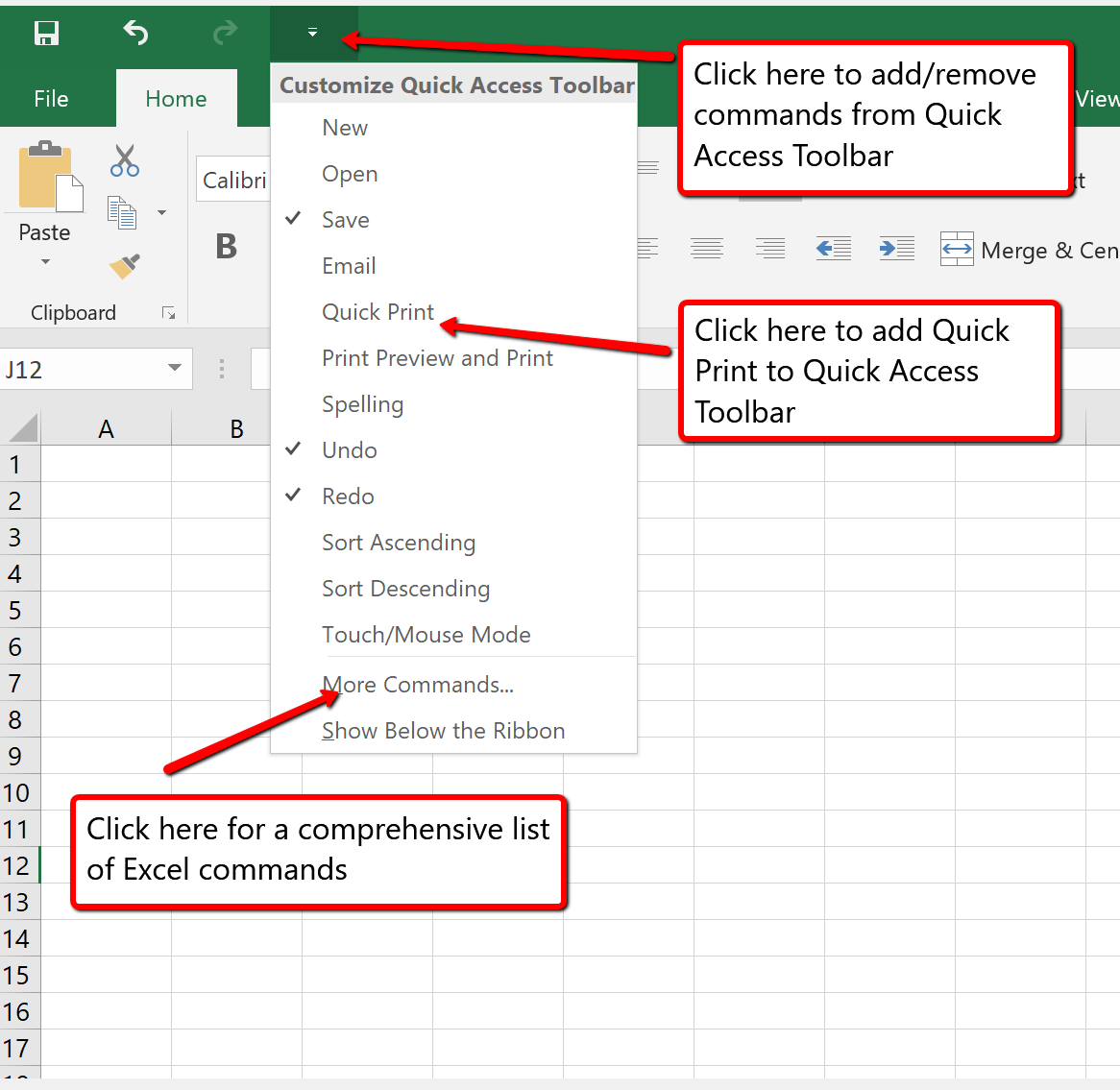
The Quick Access Toolbar is found at the upper left side of the Excel screen above the Ribbon, as shown in Figure 1.7. This area provides access to the most frequently used commands, such as Save and Undo. You also can customize the Quick Access Toolbar by adding commands that you use on a regular basis. By placing these commands in the Quick Access Toolbar, you do not have to navigate through the Ribbon to find them. To customize the Quick Access Toolbar, click the down arrow as shown in Figure 1.8. This will open a menu of commands that you can add to the Quick Access Toolbar. If you do not see the command you are looking for on the list, select the More Commands option.
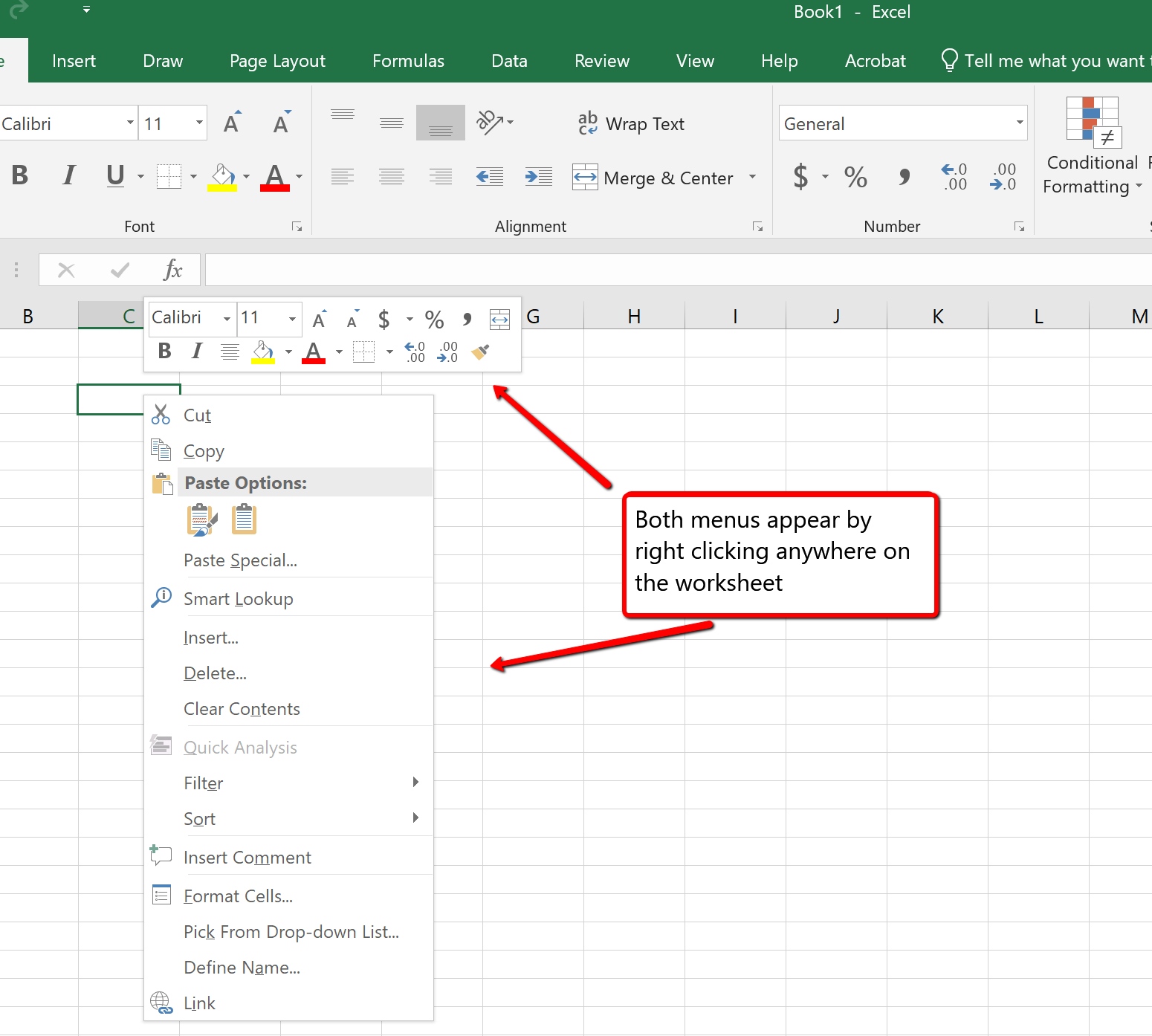
In addition to the Ribbon and Quick Access Toolbar, you can also access many commands by right clicking anywhere on the worksheet. Figure 1.9 shows an example of the commands available in the right-click menu.
There is no “Right-click” option for Excel for Mac. To access the same commands with Excel for Mac, hold down the Control key and click the mouse button.
The File Tab
The File tab is also known as the Backstage view of the workbook. It contains a variety of features and commands related to the workbook that is currently open, new workbooks, or workbooks stored in other locations on your computer or network. Figure 1.10 shows the options available in the File tab or Backstage view. To leave the Backstage view and return to the worksheet, click the arrow in the upper left-hand corner as shown below.
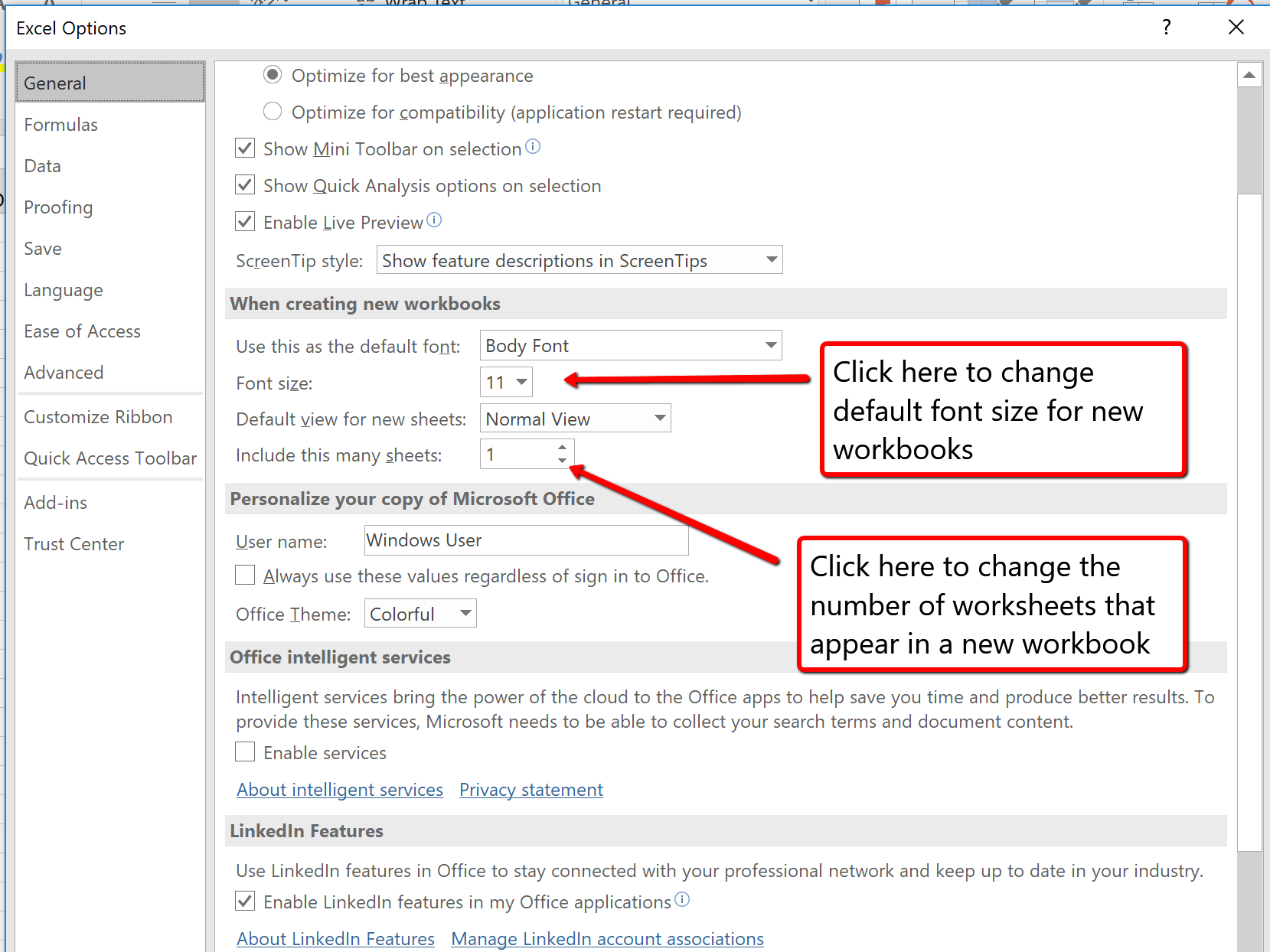
Included in the File tab are the default settings for the Excel application that can be accessed and modified by clicking the Options button. Figure 1.11 shows the Excel Options window, which gives you access to settings such as the default font style, font size, and the number of worksheets that appear in new workbooks.
To access these same options in Excel for Mac, you must click the “Excel” menu option and choose “Preferences” (see Figure 1.12 below)
Backstage View
Backstage View is the area in Microsoft Office applications where you can manage your files and application settings. To open Backstage View, click the File tab located in the upper-left corner of the Office window.
From Backstage View, you can perform tasks such as:
- Creating a new document, workbook, or presentation
- Use a template
- Opening existing files
- Saving and printing files
- Sharing documents with others
- Viewing document properties and information
- Accessing account settings and program options
Unlike the Ribbon, which is used for creating and editing content, Backstage View focuses on managing your files and settings. Clicking the File tab takes you away from the editing workspace and into this file-management area.
It may be difficult to go to backstage view. Often the 'File' option on a Mac is hidden. Here are a few shortcuts that will help:
-
Cmd + O – Open a file.
-
Cmd + P – Print.
-
Shift + Cmd + S – Save/Save As.
-
Cmd + N – New file.
-
Esc – Close Backstage View
Saving Workbooks in Excel 365
- If you have not done so already, open a blank workbook in Excel.
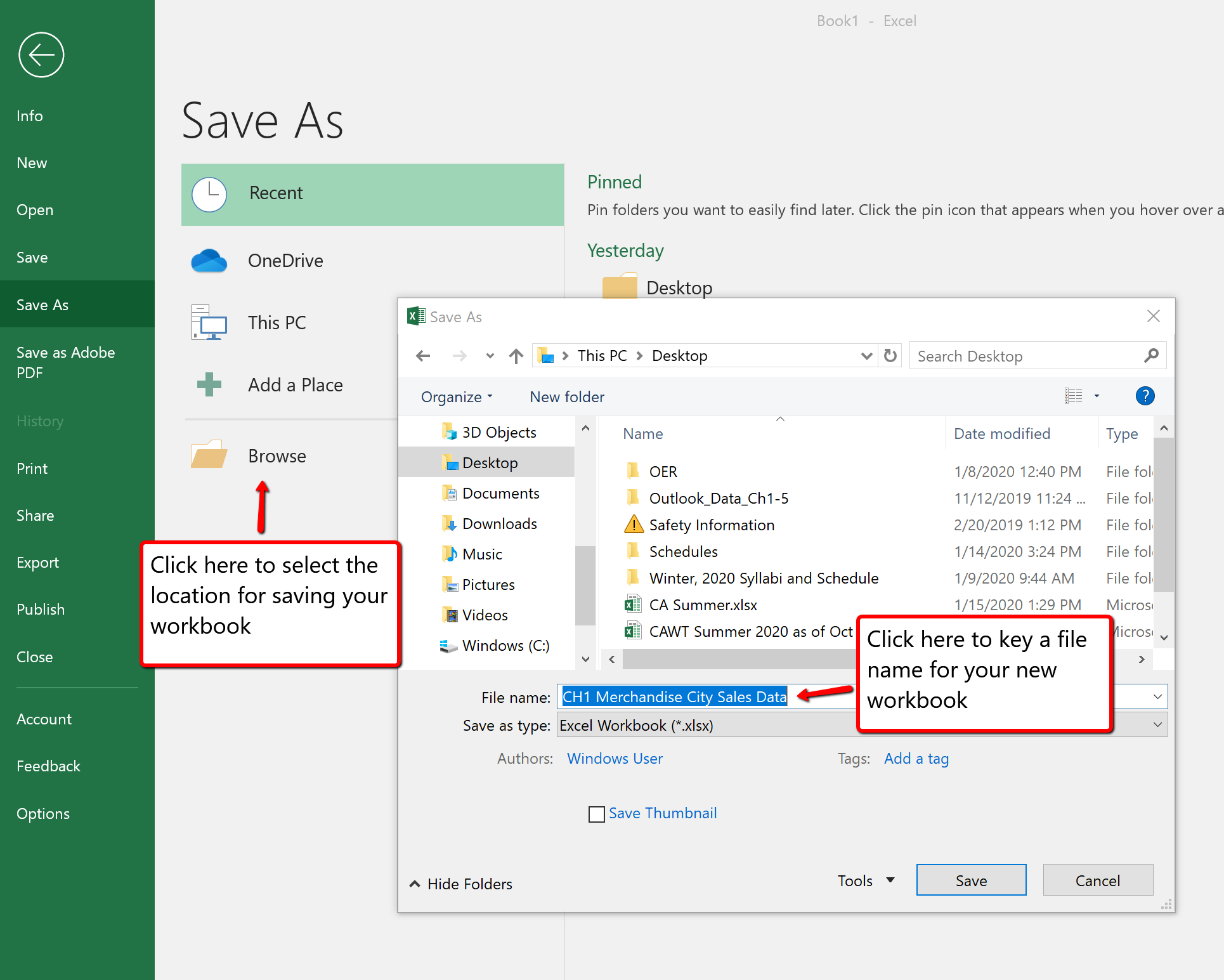
- Click the File tab and then the Save As button in the left side of the Backstage view window. This will open the Save As dialog box.
- Determine a location for saving on your computer by clicking Browse on the left side to open the Save As dialog box.
- Click in the File Name box near the bottom of the Save As dialog box. Type the new file name: CH1 Merchandise City Sales Data
- Review the settings in the screen for correctness and click the Save button.
Keyboard Shortcuts
Save As
- Press the F12 key and use the tab and arrow keys to navigate around the Save As dialog box. Use the ENTER key to make a selection.
- Or press the ALT key on your keyboard. You will see letters and numbers, called Key Tips, appear on the Ribbon. Press the F key on your keyboard for the File tab and then the A key. This will open the Save As dialog box.
- The Mac shortcut is: Hold down the Command and Shift keys and press S
Skill Refresher
Saving Workbooks (Save As)
- Click the File tab on the Ribbon.
- Click the Save As option.
- Click on Browse to select a location on your PC to save.
- Click in the File name box and type a new file name if needed.
- Click the down arrow next to the “Save as type” box and select the appropriate file type if needed. Excel will default to the file type of .xlsx
- Click the Save button.
The Status Bar
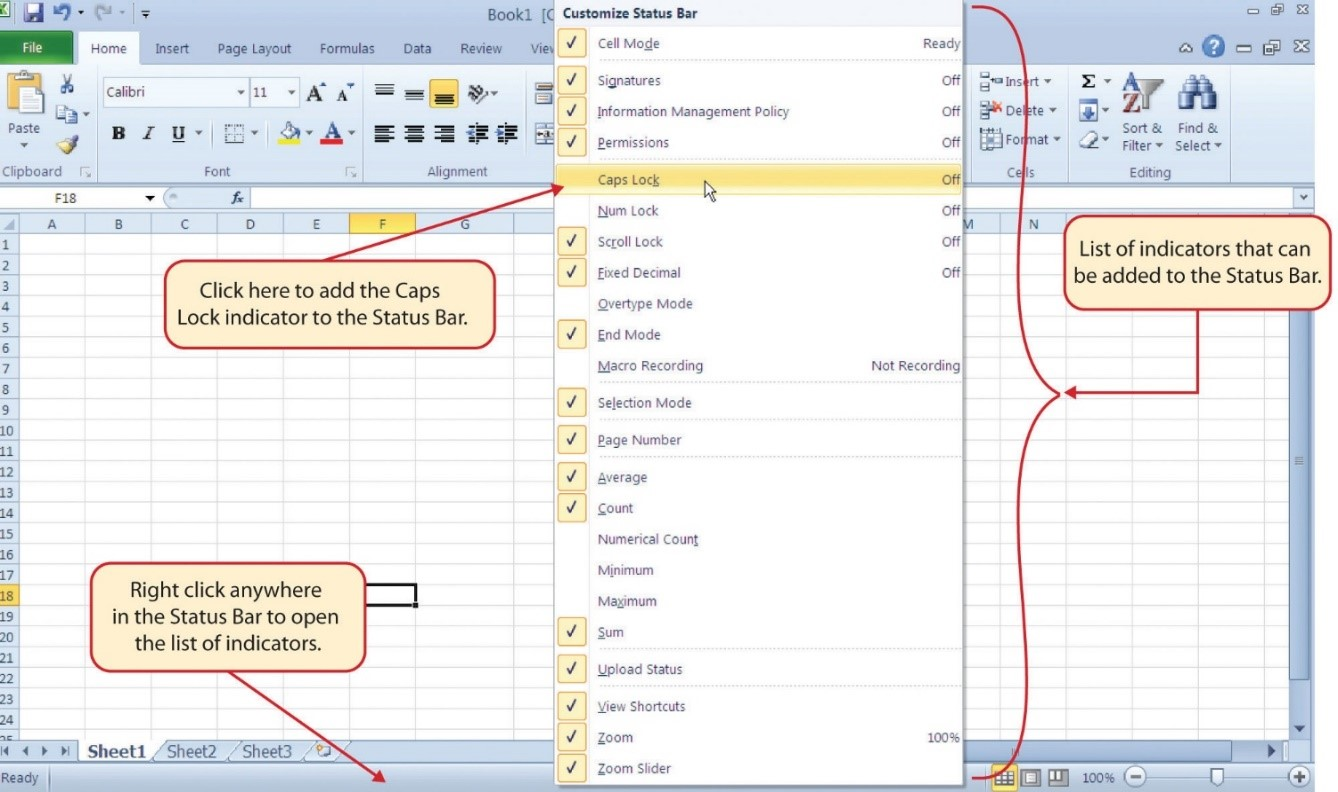
The Status Bar is located below the worksheet tabs on the Excel screen (see Figure 1.13). It displays a variety of information, such as the status of certain keys on your keyboard (e.g., CAPS LOCK), the available views for a workbook, the magnification of the screen, and mathematical functions that can be performed when data are highlighted on a worksheet. You can customize the Status Bar as follows:
- Place the mouse pointer over any area of the Status Bar and right click to display the “Customize Status Bar” list of options (see Figure 1.14).
Mac Users: use “Control-click” on the Status Bar to display the “Customize Status Bar” options. - Select the Caps Lock option from the menu (see Figure 1.14).
- Press the CAPS LOCK key on your keyboard. You will see the Caps Lock indicator on the lower right side of the Status Bar.
- Press the CAPS LOCK on your keyboard again. The indicator on the Status Bar goes away.
Excel Help
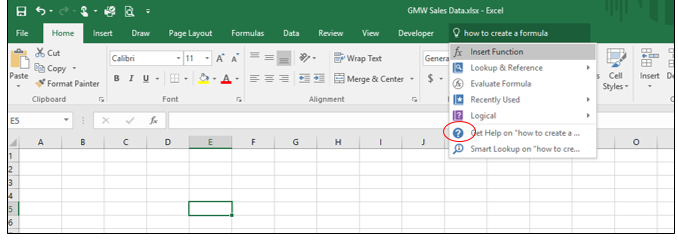
The Help feature provides extensive information about the Excel application. Although some of this information may be stored on your computer, the Help window will automatically connect to the Internet, if you have a live connection, to provide you with resources that can answer most of your questions. You can open the Excel Help window by clicking the question mark in the upper right area of the screen or ribbon. With newer versions of Excel, use the query box to enter your question and select from helpful option links or select the question mark from the dropdown list to launch Excel Help windows.
Keyboard Shortcuts
Excel Help
- Press the F1 key on your keyboard.
- Mac Users: Press F1 or hold down the Command key and press /
Key Takeaways
- Excel is a powerful tool for processing data for the purposes of making decisions.
- You can find Excel commands throughout the tabs in the Ribbon.
- You can customize the Quick Access Toolbar by adding commands you frequently use.
- You can add or remove the information that is displayed on the Status Bar.
- The Help window provides you with extensive information about Excel.
Printing Worksheets
Excel offers two options for printing: either printing each worksheet separately or printing the whole workbook. To do either, first go to the File tab, and then click on Print (Figure 9.9). The default is to print only the currently opened worksheet, so we’ll do that first. Choose the number of copies you want for this page, then choose the correct printer. There are other options for printing, include changing the size of the paper, changing vertical or horizontal orientation of the paper, adjusting the margins, and regulating the scaling (i.e., zooming in or not while printing). Once you have chosen your settings, click on the Print icon, and Sheet 1 will come out of the printer. Different printers might have different options for you to choose from.
It is important to note that, when constructing spreadsheets, what you see on the computer screen is rarely how it looks when you actually print the workbook. When you have large spreadsheets with multiple rows or columns, they may not always fit within the bounds of the printed page. When you print the document, the result could be columns of data split oddly across several pages. Be sure to preview the printed version prior to printing. When you select Print, you will see the print preview on the right of the screen. Double-check that the columns and rows are displayed in the way you would like them to print. If not, you can change the margins of the worksheet or insert a page break as appropriate to print a final, professional workbook. More will be covered about formatting the worksheets and workbook in Formatting and Templates in Excel.
MAC TIP
You can get to the Print menu with Command+P, but you can also use the File tab at the top of the window. There is a separate menu in the File menu to set your print area, and you can select which worksheets to print from the Print menu.
Real-World Application
This page titled 1.1.2: The Excel Ribbon was last modified on Fri, 17 Jul 2026 15:00:38 GMT and is shared under a CC BY-NC-SA 4.0 license and was authored, remixed, and/or curated by LueCrecy Ragan - Arkansas State University - Beebe (OpenOregon) via source content that was edited to the style and standards of the LibreTexts platform.
The book could not be loaded just now.