Opening the book…
Now let’s try to reduce the 60 Hz noise from the waveform from the previous exercise. Make sure that waveforms is still the selected ERPset, and then go to the Filtering panel, set it up as shown in Screenshot 4.4 (with 60 as the Low Pass cutoff), and click Run.
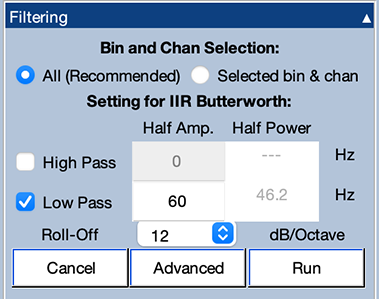
Name the new ERPset waveforms_filt60 (to indicate that you filtered it at 60 Hz). If you look at the new version of waveform+60 in the plotting region, you'll see that it still has quite a bit of 60 Hz noise in it—maybe about half as much as before (see Screenshot 4.5). And if you go to the Spectral Analysis panel and click Plot, you'll see that the peak at 60 Hz is approximately 0.025 µV (which is half of the peak voltage of 0.05 µV that you saw before; see Screenshot 4.5).

You might have expected that entering a cutoff of 60 Hz would have led all of the 60 Hz activity to be filtered out. However, the 60 that you entered is actually the half-amplitude cutoff frequency, which means that the amplitude at 60 Hz will be cut in half. To understand this, we need to take a closer look at the filter. To do this, go to the ERPsets panel and select the original waveforms ERPset, and then go back to the Filtering panel and click the Advanced button. A new window will appear that will look like Screenshot 4.6. You'll probably need to set the X limits right below the waveform to 0 100.

The function shown in this window is called the frequency response function of the filter. It tells you the gain that will be applied to each frequency. The gain is just a multiplication factor. A gain of 1 means that the amplitude of that frequency will be multiplied by 1 (i.e., unchanged). A gain of 0.75 means that the amplitude of that frequency will be multiplied by 0.75, which also means that it will be reduced by 25%. The half-amplitude cutoff of 60 Hz that we specified means that the gain of the filter is 0.5 at 60 Hz; this is the point at which the gain is reduced by half (which is why it’s called the half-amplitude frequency). That's why the filter reduced the amplitude of the 60 Hz noise by only 50% (see Screenshot 4.5).
The shape of the filtering function is determined by two factors: the cutoff frequency and the roll-off. The roll-off specifies how rapidly the function drops, and it's specified in decibels (dB, a logarithmic amplitude scale) per octave (a logarithmic frequency scale). This is essentially the slope of the frequency response function at its steepest point.
The filter we’ve specified has a fairly gentle roll-off of 12 dB/octave. As a result, even though it’s nominally a 60 Hz filter, the gain is still well above zero at 80 Hz, and there is noticeable attenuation as low as 25 Hz.
Stay in the Advanced window and change the low-pass cutoff to 25 Hz. You'll see that the frequency response function changes, and the half-amplitude point is now at 25 Hz instead of 60 Hz. But the gain of this filter is still well above zero at 60 Hz, which might seem to indicate that it is not ideal for getting rid of 60 Hz noise. In just a bit, you will see that this filter is actually reasonably good for minimizing 60 Hz noise.
Now try changing the roll-off to 48 dB per octave. As shown in Screenshot 4.7, the resulting frequency response function looks a lot better. The gain is now near 1 for everything below about 15 Hz, and it’s near zero for everything above about 40 Hz. However, as we’ll see later in this chapter, this sharper frequency response function means that the filter produces more distortion in the time domain. It looks great, but looks can be deceiving.

Change the roll-off back to 12 dB/octave, click Run to apply the filter, and then name the new ERPset waveforms_filt25. You can see that, even though the waveform still wiggles a little bit at 60 Hz, the oscillation is mostly gone. And in a real ERP waveform, any remaining 60 Hz would be much smaller than the noise level of the data and have little or no impact. So, this filter works fine as long as the amplitude of the 60 Hz noise isn't too great.
Now let’s try a more severe filter. Make the original unfiltered ERPset active (by selecting it in the ERPsets menu) and filter it just as before, except set the low-pass cutoff to 10 Hz with a roll-off of 12 dB/octave. Click RUN and then name the new ERPset waveforms_filt10. This filter more fully eliminates the 60 Hz noise, but as we will see in a moment, it reduces the temporal resolution of the data. You can also see a weird little dip in the waveform at the very beginning of the baseline period. This is called an edge artifact; we will talk about these artifacts in a later section of this chapter.
To better see the distortion produced by the 10 Hz filter, let's overlay the filtered and unfiltered data. Unfortunately, you can't directly overlay waveforms from different ERPsets (unless you launch the Advanced Waveform Viewer). However, there's a little trick for getting around this limitation: We can append multiple ERPsets together into a single ERPset, which creates different bins for the data from each original ERPset. We can then overlay those bins.
Let’s append the ERPsets from the original data, the data filtered at 25 Hz, and the data filtered at 10 Hz. Select those three ERPsets in the ERPsets panel (without selecting the ERPset that was filtered at 60 Hz). Then go to the Append ERPsets panel, set it up as shown in Screenshot 4.8, click Run, and save the resulting ERPset with its default name of append.

If you look at the Bin & Channel Selection panel, you'll see that this ERPset has 3 bins: Bin 1 is the original unfiltered data; Bin 2 is the data after filtering at 25 Hz; and Bin 3 is the data after filtering at 10 Hz. These three bins are overlaid in the plotting region, as shown in Screenshot 4.9.
The red line in the bottom set of waveforms shows the original waveform with the 60 Hz noise added. The green line shows the effect of filtering at 25 Hz: The green line falls nearly perfectly between the upward and downward deflections of the red line. That's just what we want: The same basic waveform, but without the little "uppies and downies" from the noise. The blue waveform shows the effect of filtering at 10 Hz. You can see that the first positive peak (analogous to a P1) and the first negative peak (analogous to an N1) are reduced in amplitude by this filter.

It's easier to see the distortion produced by a filter by filtering noise-free waveforms. That's what is shown at the top of the screenshot. The 25-Hz filtered waveform lies almost perfectly over the unfiltered waveform, producing only a tiny amount of distortion. However, the 10-Hz filtered waveform has significantly reduced P1 and N1 amplitudes. Moreover, the onset time of the P1 at the beginning of the waveform is earlier in the 10-Hz filtered data than in the original data, and the offset time of the third positive peak (analogous to a P2 wave) is delayed in the 10-Hz filtered data.
This example shows how a little bit of filtering can help reduce noise (e.g., the 25-Hz filter), but too much filtering can distort the data (e.g., the 10-Hz filter). The next section will provide some simple advice about how to select filters that will do a reasonably job of reducing noise without producing significant waveform distortion. This will be followed by several sections that explain how filters work in the time domain so that you can understand when and how they will distort your waveforms. The last several sections will show you how to choose filters for your own data so that you reduce the noise but do not produce too much waveform distortion.
This page titled 4.4: Exercise- Filtering the 60 Hz Noise was last modified on Thu, 01 Oct 2026 18:52:57 GMT and is shared under a CC BY-NC 4.0 license and was authored, remixed, and/or curated by Steven J Luck directly on the LibreTexts platform.
The book could not be loaded just now.