Opening the book…
To reset everything and return the calculator to factory settings, first press the buttons \(\boxed{\text{2nd}}\)\(\boxed{\text{+}}\) to get to the MEMORY menu, and then \(\boxed{\text{7}}\) (‘Reset...’).
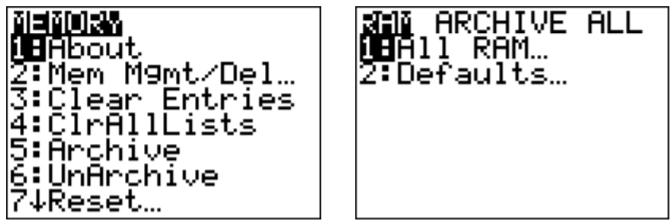
Then move the cursor to the right (with \(\boxed{\triangleright}\)) until ‘ALL’ is highlighted. Press \(\boxed{\text{enter}}\) (‘All Memory...’) and \(\boxed{\text{2}}\) (‘Reset’).
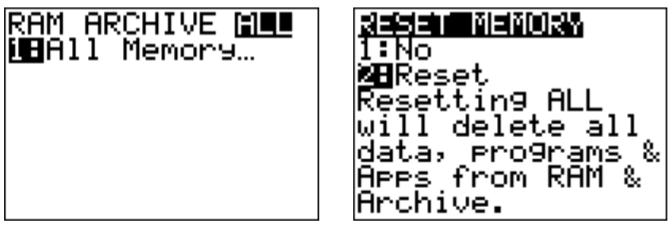
(With some of the other options in the MEMORY/Reset... menu you can also reset selective parts of the calculator only.)
This page titled 26.10: A.10- Resetting the calculator to factory settings was last modified on Mon, 02 May 2022 15:49:51 GMT and is shared under a CC BY-NC-SA 4.0 license and was authored, remixed, and/or curated by Thomas Tradler and Holly Carley (New York City College of Technology at CUNY Academic Works) via source content that was edited to the style and standards of the LibreTexts platform.
The book could not be loaded just now.