Opening the book…
Most databases and discovery services will include an advanced search. Sometimes, the database will default to offering the advanced search. While this screen can look more confusing than the simple single search box interface, don't fret! It's not really that complicated.
You can search using only the first search box. The other lines and search fields offer you to option to use your boolean operators more easily. As shown below, this search will find resources including the keywords risk, emergency, and nursing. It also includes geriatric in the second search box, however, the drop-down next to it has been set to NOT. This will employ the NOT boolean operator, telling the database not to display any results with the word geriatric in them.
The advanced search also offers filters to help limit your results further. In this case, it offers to filter by material type, language, and publication date.
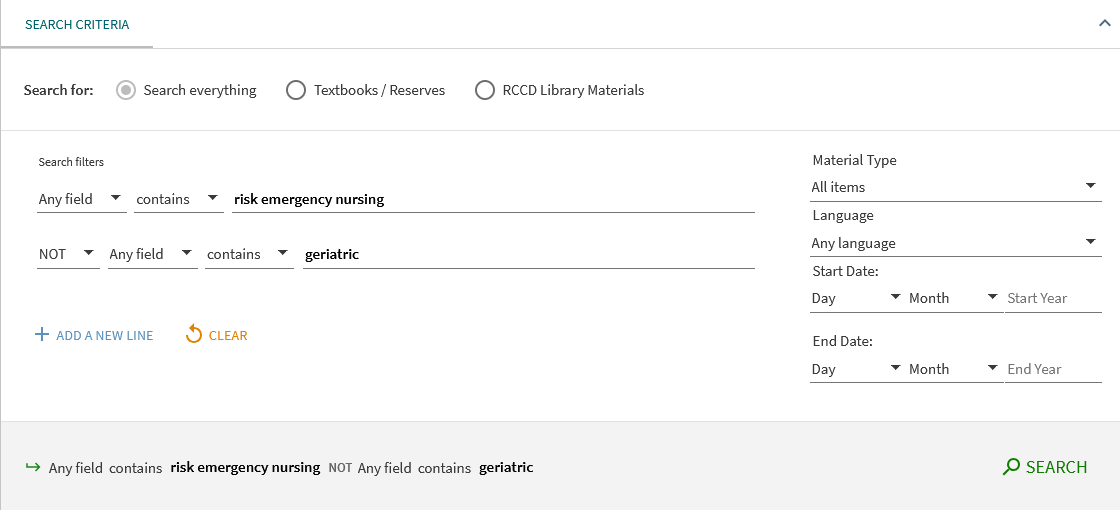
[OneSearch Advanced Search by Daniel Wilson, licensed CC BY NC 4.0]
This page titled 5.4: Using Advanced Search was last modified on Thu, 03 Apr 2025 02:42:41 GMT and is shared under a CC BY-NC license and was authored, remixed, and/or curated by Lyric Ripley.
The book could not be loaded just now.