Opening the book…
Roassal is part of the Moose distribution1. Nothing has to be installed and you can directly proceed to your first visualization.
Installing Roassal in a fresh Pharo image is easy, thanks to Gofer and Metacello. Just open a workspace and execute:
Gofer new smalltalkhubUser: 'ObjectProfile'
    project: 'Roassal';
    package: 'ConfigurationOfRoassal';
    load.
(Smalltalk at: #ConfigurationOfRoassal) load
Roassal is known to work with the versions 1.4, 2.0, 3.0, and 4.0 of Pharo.
A first visualization.
The first visualization we will show represents the Collection class hierarchy. It defines each class as a box connected with its subclasses. Each box displays the number of methods and number of instance variables of the represented class.
view := ROView new.
classElements := ROElement forCollection:
    Collection withAllSubclasses.

classElements
    do: [ :c |
        c width: c model instVarNames size.
        c height: c model methods size.
        c + ROBorder.
        c @ RODraggable ].
view addAll: classElements.

associations := classElements
    collect: [:c |
        (c model superclass = Object)
            ifFalse: [ (view elementFromModel: c
        model superclass) -> c]]
    thenSelect: [ :assoc | assoc isNil not ].
edges := ROEdge linesFor: associations.
view addAll: edges.

ROTreeLayout new on: view elements.
view open
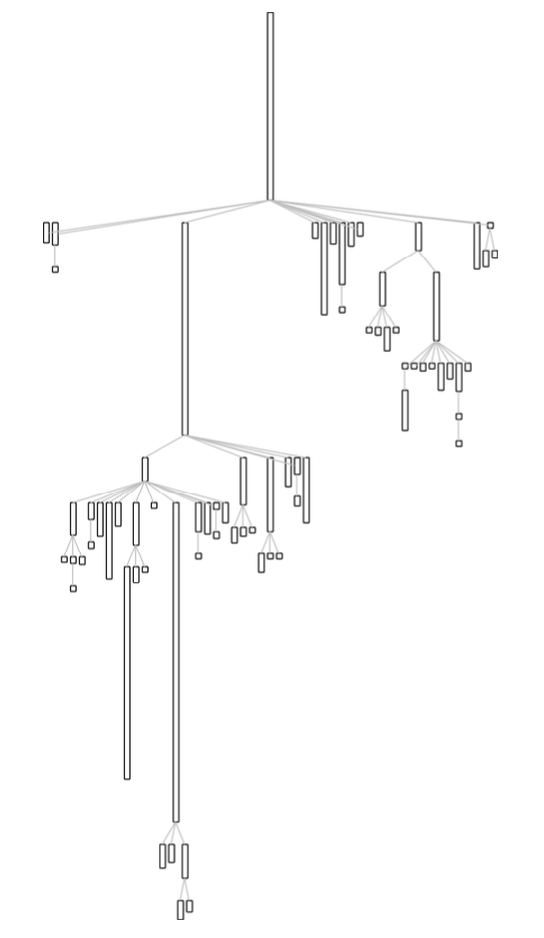
How to achieve this visualization will be explained in this chapter. The next chapter details how to create it using the Mondrian domain-specific language (DSL) by using the Mondrian builder, which is part of Roassal.
Roassal Easel
The Roassal easel is a tool to interactively script visualizations. The metaphor used with the easel is to turn the programmer into a painter carrying out the work on an easel: creating, adjusting, erasing are just a few (key) strokes away.
The Roassal easel is accessible from the Pharo World menu. Just look for the R icon2.
The easel is made of two independent windows, the one on the left-hand side renders the script written in the textual window on the right-hand side. By accepting (Cmd-s, Alt-s / right-clicking and pressing accept) in the editor, the visualization will be updated. This is the same keystroke used for accepting a method in the system browser. The advantage of this is to have a short feedback loop. With this, the meaning of your script is always one keystroke away.
The visualization window contains many examples of visualizations, including a step-by-step tutorial. Examples are separated in two categories: ROExample and ROMondrianExample, and are accessible by clicking in the examples button in the upper part of the visualization window.
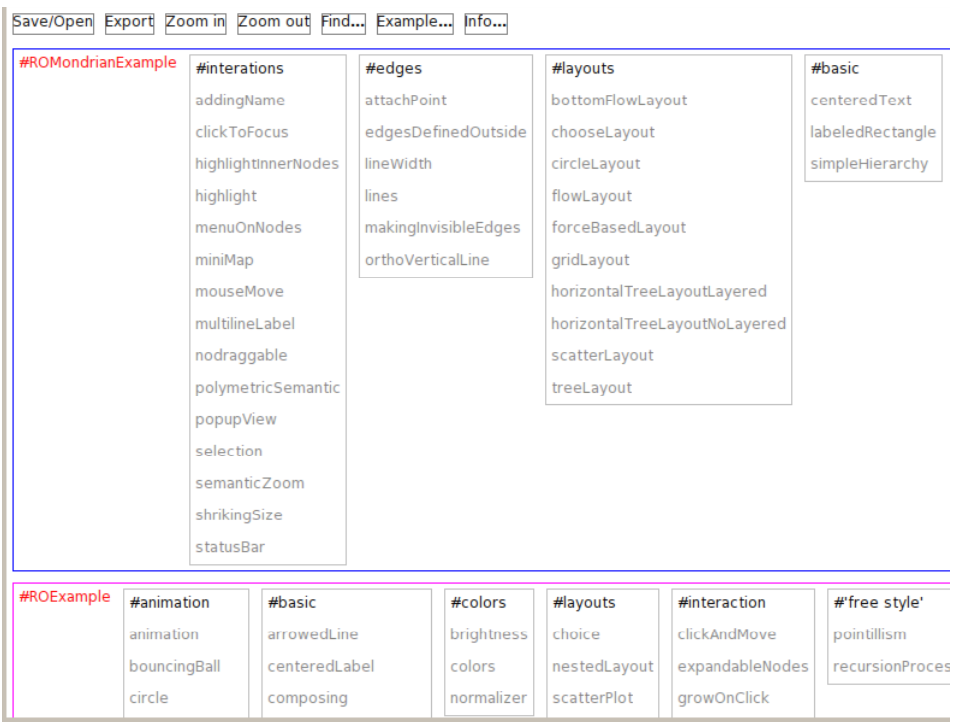
The ROMondrianExample category includes examples created with Mondrian, a domain specific language built at on top of Roassal. These examples primarily use the ROMondrianViewBuilder class to make a visualization. The ROExample category directly illustrates Roassal.
- http://www.moosetechnology.org/
- Note that a Glamour-based easel is also provided, under the Moose section of the World menu. The Glamour-based Roassal easel is similar to the easel presented here. A dedicated presentation of this version may be found in the moose book, http://themoosebook.org.
This page titled 10.1: Installation and First Visualization was last modified on Mon, 26 Jul 2021 15:16:46 GMT and is shared under a CC BY-SA 3.0 license and was authored, remixed, and/or curated by Alexandre Bergel, Damien Cassou, Stéphane Ducasse, Jannik Laval (Square Bracket Associates) via source content that was edited to the style and standards of the LibreTexts platform.
The book could not be loaded just now.