Opening the book…

4.5.1. What is file management?
File management refers to the systematic organization, storage, and control of digital information within an organization.
It's the foundation of efficient digital operations, encompassing everything from basic file naming conventions to complex automated workflows and bypassing email file size limits with compression and storage solutions.
File management is about creating logical systems that allow users to store, locate, and retrieve information quickly and efficiently.
The core functions of file management include:
- Organizing files into coherent structures
- Implementing naming conventions
- Controlling access permissions
- Maintaining version control
Strong file management = better productivity, easier access, and tighter security.
4.5.2. Best practices for effective file management
Effective file management practices are crucial for maintaining an organized and efficient digital workspace.
The following best practices can help organizations establish a robust system that promotes productivity while ensuring data security and accessibility.
- Establish consistent naming conventions
- Create a logical folder hierarchy
- Implement version control procedures
- Set up automated backup systems
- Archive outdated files regularly
- Establish access control protocols
- Perform regular system audits
- Document management procedures
- Implement file retention policies
- Set up automated organization tools
4.5.3. What is Microsoft Windows File Explorer?
Microsoft Windows File Explorer is a graphical file management utility for the Windows operating system (OS). Windows Explorer was introduced with Windows 95 and later renamed File Explorer. Each time a computer user accesses a disk or opens a folder containing files, they are using the Windows File Explorer utility.
File Explorer in Windows 11 has been redesigned and has a new structure.
The equivalent tool in Mac OS is Apple Finder. The equivalent tools in Linux are (depends on the desktop environment): Nautilus, Dolphin, Thunar, Nemo, Caja.
4.5.4. Using Microsoft Windows File Explorer
Opening File Explorer
To open File Explorer, click on the File Explorer icon located in the taskbar.

| Windows bottom menu bar. Image by Luis R Castellanos, Public Domain, Own work. |
Alternatively, you can open File Explorer by clicking on the Start button and then clicking on File Explorer.

| Windows menu. Image by Luis R Castellanos, Public Domain, Own work. |
Displaying Subfolders
If you’ve used previous versions of Windows, you know that a folder name would have a plus sign next to it if that folder contains documents or subfolders.
With Windows 11, if a folder contains subfolders, that folder name will instead have a small right-pointing triangle next to it.
- No triangle next to a folder name means that the folder has no subfolders.
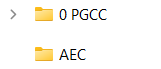
- To view a folder’s subfolders, click on the right-pointing triangle next to the folder. The right-pointing triangle will turn into a down-pointing triangle, and the subfolders will be displayed, as shown below.

- Down-pointing triangle next to a folder name means that subfolders are currently displayed for that folder.

- To hide a folder’s subfolders, click on the down-pointing triangle of that folder so that the subfolders will no longer be displayed.
Accessing Your Files and Folders
There are number of ways you can navigate to your files and folders in File Explorer:
- Using the Address bar (located at the top of File Explorer). The Address bar shows the full path of your current location.
- Forward and Backward buttons
- From the Folders pane
- Using the Search function (searches file names and file and folder contents in the current folder to find items containing your search term)
Using the Address Bar
The Address bar, which is located at the top of File Explorer as shown below, displays the path of the currently selected folder.
File Explorer drop-down menus are available for each subfolder in the Address bar. So you can easily go backward or forward in the folder path by clicking on the right-pointing arrow next to a folder and selecting a subfolder from the drop-down menu.

| File Explorer Address Bar. Image by Luis R Castellanos, Public Domain, Own work. |
Viewing Previously Visited Folders in the Address Bar
To view folders you’ve been to previously, you can do any of the following:
Click on the Forward or Back buttons. (These buttons work just like the Forward and Back buttons on a Web browser.)

| File Explorer Forward and Back buttons. Image by Luis R Castellanos, Public Domain, Own work. |
Click on a folder name in the Address bar.
Changing How Your Files and Folders are Displayed
You can change how your folder and file icons look, as well as display different information about them. Note: Changes you make will apply to the contents of the current folder only.
- Navigate to the folder whose display you want to change.
- Click on the View tab to display the Ribbon.
- In View, you’ll see the following available display options:

| File Explorer View Options. Image by Luis R Castellanos, Public Domain, Own work. |
(Note: If some of your files or folders are hidden when the Ribbon is displayed, you can pin the Ribbon to File Explorer (keep it displayed, or expanded, in File Explorer even if you’re doing another task) by clicking on the up-pointing arrow on the top right-hand side of your File Explorer window; once you pin the Ribbon, you’ll be able to see those previously hidden files or folders.)
- Move your mouse over each option to see a quick preview of that option in the area where your files and folders are displayed.
- To choose an option, just click on it.
- To show more information about files and folders from display views that show little or no information (e.g., Large icons), you can open the Details Pane by clicking on the View menu, and then clicking on Details Pane.
- Click on an item to view the details of that item in the Details Pane.

| File Explorer View Options Examples. Image by Luis R Castellanos, Public Domain, Own work. |
Creating a New Folder
- Navigate to the location where you want to add your folder.
- In File Explorer, click on the New menu item (located on the top left corner.)
- From the drop down menu, click on the New folder button.
- Enter the name of your new folder.
- After you enter the folder name, click anywhere outside the text area to complete creation of the folder name.

| File Explorer New Folder. Image by Luis R Castellanos, Public Domain, Own work. |
Searching for Files
Windows 11 comes with a powerful search capability.
Windows 11 will search all file types—documents, images, music, Web pages—as well as bookmarks and program shortcuts on your Desktop. Windows 11 will search file content, as well as file and folder names.
- Navigate to the folder where you want to search for items. You will see the Search box in the upper right-hand corner of the Windows Explorer window. (You should see a small magnifying glass icon on the right-hand side of the text area.)
- Type the desired search text in the Search box. Choose the desired search criteria from Search Options. (Some of the search criteria you select might be added to the Search text area; Windows updates the search results automatically as you enter search criteria.)As you type your search text, Windows automatically displays in the file and folder list area any items that match your search criteria. The Address bar will also display Search results in [current folder name]; in the example below, Search results in Documents is displayed in the Address bar. If not already displayed, expand the File Explorer window to also display file or folder location, text snippet for text documents, or dimensions for image files.
- If you’ve set up search criteria you want to retain for a future search, you can save that search by clicking Save search.

| File Explorer Search. Image by Luis R Castellanos, Public Domain, Own work. |
Windows 11 searches in your current folder. So, for example, if you’re looking for a file that you know exists somewhere in your Documents folder, you may want to conduct your search from the top level of the Documents folder [not from a subfolder in Documents] to have the best chance of finding that file.)
Creating a Shortcut to a Folder
You can add a folder in the Quick access area of the Navigation Pane as a shortcut, much like you might add a bookmark in a Web browser. Creating a shortcut enables you to quickly and easily get to any folder you use frequently.
- Open Windows Explorer.
- Navigate to the folder for which you want to create a shortcut.
- Click on the folder icon and drag it to the "Favorite Links" section, and then drop it in the position you want it to appear. (A horizontal line changes position as you move your mouse. The line indicates where your icon will appear.)
The folder will be displayed in the Quick access area.
Or, you can click on the folder with the right mouse button, and chose "Pin to Quick access" on the menu.

| File Explorer Quick Access. Image by Luis R Castellanos, Public Domain, Own work. |
Compress and Extract (Zip and Unzip) files and/or folders
Zipped (compressed) files reduce file size and bundle multiple files for easier sharing. In Windows, users can create ZIP files via the right‑click menu or File Explorer tools. Contents can be extracted using “Extract All” or by dragging files out of the archive. Zipped folders behave like regular folders but may affect encryption and compression outcomes.
Zipped (compressed) files take up less storage space and can be transferred to other computers more quickly than uncompressed files. In Windows, you work with zipped files and folders in the same way that you work with uncompressed files and folders. Combine several files into a single zipped folder to more easily share a group of files.
To zip (compress)
- Locate the file or folder that you want to zip.
- Right-click (or press and hold) the file or folder, select Show more options > Send to > Compressed (zipped) folder.
A new zipped folder with the same name is created in the same location. To rename it, press and hold (or right-click) the folder, select Rename, and then type the new name.

| File Explorer Compress. Image by Luis R Castellanos, Public Domain, Own work. |
To unzip (extract)
- Locate the zipped folder that you want to unzip (extract) files or folders from.
- Do one of the following:
- To unzip a single file or folder, open the zipped folder, then drag the file or folder from the zipped folder to a new location.
- To unzip all the contents of the zipped folder, right-click (or press and hold) the folder, select Extract All..., and then follow the instructions.
- Or you can open the folder and click on the "Extract all" option.
 |
 |
| File Explorer Extract. Images by Luis R Castellanos, Public Domain, Own work. |
Move files
1.Use Drag and Drop to move
- Click and hold the file you want to move, drag it to the desired folder, and release it.
- To Copy: Hold down the CTRL key while dragging the file to create a copy instead of moving it.
2. Keyboard Shortcuts
- Copy Files: Select the file(s) you want to copy and press CTRL + C. Then navigate to the destination folder and press CTRL + V to paste.
- Move Files: Select the file(s) you want to move and press CTRL + X to cut them. Navigate to the destination folder and press CTRL + V to paste them.
3. Context Menu Options
- Right-click Method: Right-click on the file and select "Copy" or "Cut." Then navigate to the destination folder, right-click in the folder, and select "Paste."
4. Quick Access and Navigation Pane
- Use Quick Access: Pin frequently used folders to Quick Access for easier navigation.
- Navigate Easily: Use the navigation pane on the left side to quickly switch between folders
4.5.5. Keyboard shortcuts in Microsoft Windows
Keyboard shortcuts are keys or combinations of keys that provide an alternative way to do something that you'd typically do with a mouse.
The Windows shortcuts combine the Control (Ctrl), Alternate (Alt), Shift and Function keys with the alphabet letters.
The most common are:
| Ctrl + A | Select all text | Ctrl + H | Find and replace text | |
| Ctrl + B | Apply the bold format to the selected text | Ctrl + V | Paste the last item from the clipboard | |
| Ctrl + C | Copy the selected text | Ctrl + X | Cut the selected text | |
| Ctrl + F | Find text | Ctrl + Z | Undo the last typing |
More shortcuts in Keyboard shortcuts in Windows

Kirvan, Posey & Bigelow. Microsoft Windows File Explorer. TechTarget. Link.
Mailchimp. What is file management? Link.
Microsoft. Keyboard shortcuts in Windows. Link.
Microsoft. Zip and unzip files. Link.
UC Davis. Working with the File Explorer in Windows 11. Link.
| Image by Serdar Barış from Pexels |
This page titled 4.5: File Management was last modified on Wed, 16 Sep 2026 19:48:29 GMT and is shared under a CC BY-NC-SA 4.0 license and was authored, remixed, and/or curated by Luis Castellanos Hurtado.
The book could not be loaded just now.