Opening the book…
After completing this lab section, you will be able to:
- Program and run MATLAB software in the MATLAB environment.
- Program and run Simulink graphic-based software in the MATLAB/Simulink environment.
MATLAB Installation
Install MATLAB R2019a (or 2024b) on your own laptop and update your academic license. Get the campus software by the link below.
https://www.mathworks.com/academia/t...igibility.html
During the installation, you will need to select the following MathWorks toolboxes. They will be used to program the mini-Segway projects or other projects.
- MATLAB and Simulink
- Real-Time Workshop\(\mathrm{ ^{TM}}\)
- Control System Toolbox\(\mathrm{ ^{TM}}\)
- Curve Fitting Toolbox\(\mathrm{ ^{TM}}\)
- DSP System Toolbox\(\mathrm{ ^{TM}}\)
- Image Processing Toolbox\(\mathrm{ ^{TM}}\)
- Instrument Control Toolbox\(\mathrm{ ^{TM}}\)
- Optimization Toolbox\(\mathrm{ ^{TM}}\)
- Signal Processing Toolbox\(\mathrm{ ^{TM}}\)
- Simscape\(\mathrm{ ^{TM}}\)
- Simscape Multibody\(\mathrm{ ^{TM}}\)
- Stateflow
- Symbolic Math Toolbox\(\mathrm{ ^{TM}}\)
Most US college students have a free MATLAB license. Any issues associated with your license can be addressed by your IT department.
If you already have MATLAB R2019a (or 2024b) installed, check if you have the required products by typing the command ver and press “Enter” (or “return”) in the MATLAB command window.
Simulation with MATLAB
Before conducting a simulation study, we need to introduce MATLAB fundamentals. There are two ways to run a program in MATLAB. You can choose either of them for your future lab operations. The final results will be the same. The two programing methods are shown from Steps 1 to 5 below.
- Start MATLAB 2019a (or 2024b) from either the Windows Start Menu or the desktop. A MATLAB command window will pop up (as shown in Figure B.1). The basic configuration of the command window should include “Tool bar,” “Current Folder Browser,” “Command Window,” and “Workspace.”

- In the command window, type the first command in this lab section. Type the command display (‘Hello, Spartan!’) at the “\(\mathrm{>}\)\(\mathrm{>}\)” prompt and press “Enter” (or “return”) on the keyboard. The result is shown in Figure B.2.

- Script is also used widely in MATLAB. Left single click on the “New” icon and select “script.” Then a new “Editor” window will pop up (see Figure B.3). Type the disp command in the file named “Test_1.m”. Note that commands disp and display are equivalent.

- Single click the “Run” button in the tool menu. The “Save” window will pop up. Then type “Test_1” into the File name and click “Save.” The file name and results will appear in the command window (see Figure B.4 below) accordingly.
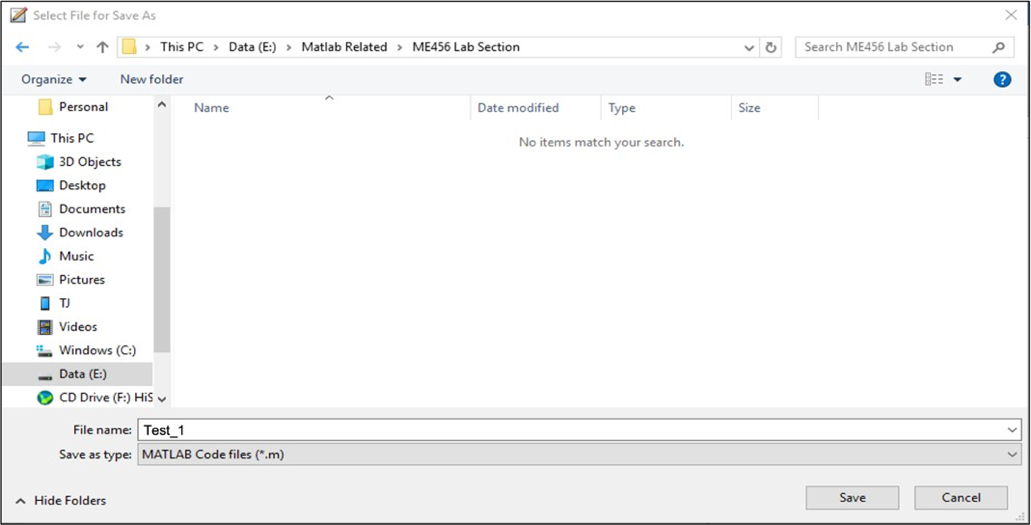
Type Test_1 in the MATLAB command window, and Hello Spartan! will be displayed, as shown in Figure B.5.

- A variable can be defined with an assigned value using the expression, \(\boldsymbol{\mathrm{<}}\)variable name\(\boldsymbol{\mathrm{>}}\) = \(\boldsymbol{\mathrm{<}}\)expression\(\boldsymbol{\mathrm{>}}\);, where the semicolon is used if you do not want to show the result in the MATLAB command window. Note that both a string and numerical value can be assigned to a variable. Now, try to delete the semicolon in your second command. Your assignment result should appear in the MATLAB command window. Try the command in Figure B.6. to become familiar with the variable assignment.

This page titled 11.0: MATLAB/Simulink Installation was last modified on Thu, 23 Jul 2026 04:44:02 GMT and is shared under a CC BY-NC 4.0 license and was authored, remixed, and/or curated by Guoming Zhu (Co-DREAM OER) .
The book could not be loaded just now.