Opening the book…
Creating Libretext ADAPT Account
You will use the ADAPT system of LibreText to submit your assignments and you will use the Single Sign On option through your school (@vikes.csuohio.edu) email. Do not create a private account within the ADAPT system.
- Go to https://adapt.libretexts.org. (Figure \(\PageIndex{3}\)) Click Log IN (DO NOT REGISTER!)
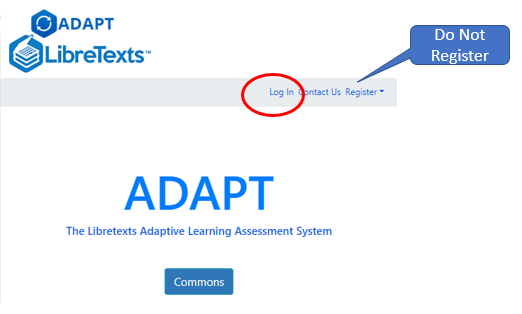
Figure \(\PageIndex{3}\): Click Log In. Do not Register. - Click Campus Login (DO NOT FILL OUT FORM) (figure \(\PageIndex{4}\)).

Figure \(\PageIndex{4}\): Click "Campus Login", this will allow you to set up a Single Sign On (SSO) with your UALR email account. - Click "Microsoft Active Directory" (figure \(\PageIndex{5}\)).

Figure \(\PageIndex{5}\): You will be able to log in with your CSU email through the Microsoft Active Directory option) - Choose your CSU email account and fill out form, choosing the student option (figure \(\PageIndex{6}\)).

Figure \(\PageIndex{6}\): Be sure to set up the account with your UALR email address. - You now have an account and can enroll in a course.
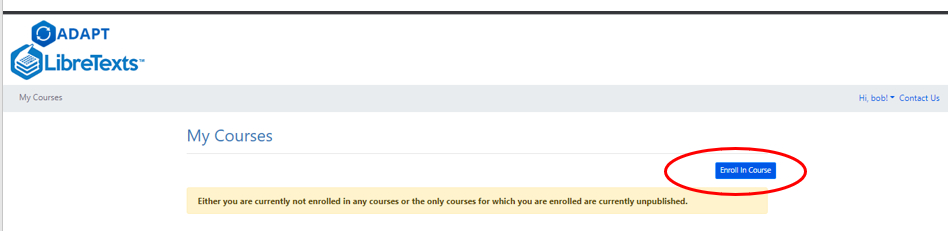
Figure \(\PageIndex{7}\): You now have an account within the ADAPT system and need to get an access code from your instructor to enroll in a course (Copyright; author via source) - You will need an access code for each course you take. This is provided by your instructor and can be found in Blackboard.

Figure \(\PageIndex{8}\): Insert your access code and you will become registered for a course. - You now can navigate to your course assignments

Setting up Notifications
ADAPT can send an alert to your email when an assignment is due. This is advised as you will lost points for late assignments.
- Next, Click on your name in the top right corner and go to Settings.

Figure \(\PageIndex{10}\): Open settings -
Go to Notifications and choose the time option for your reminders. Click "Update"

Figure \(\PageIndex{11}\): Copy and Paste Caption here. (Copyright; author via source)
The book could not be loaded just now.